Guide
How to Let Community Members Submit Events in WordPress
How can community members submit their own events to a WordPress calendar? Add a front-end form, set who may submit, and review each event before it is live.
If you are asking how can I let community members submit their own events to my WordPress calendar, the short answer is this. Put a front-end event form on a page of your site, choose which logged-in members may use it, and switch on approval so every submission waits for you before it goes live. Eventonomy does all three in the free plugin: members get a Manage Events page, a form to fill in, and a queue on your side to approve from.
That setup takes about ten minutes, and nobody who submits an event ever sees wp-admin. The rest of this guide goes through the questions people ask when they plan it: which approach to pick, who should be allowed in, what the form asks, how moderation works, and what you pay for.
Which approach should you use to take member events?
There are really two ways to let members add events to a WordPress calendar, and the difference is who does the typing.
The first is a contact form. A member fills in a generic form, it lands in your inbox, and you copy the details into the calendar yourself. This works if you get two submissions a year. At ten a month it becomes a second job, and details get lost between the email and the event page.
The second is a real front-end event form. The member fills in the same fields you would, the event is saved as a proper event, and it shows up in your calendar, lists and search the moment you approve it. You never retype anything. That is the approach this guide covers.
With Eventonomy you have two places to put that form, and you can use either or both:
- The My Events dashboard. Add the My Events block to a page. On a new install, activation already creates a page called Manage Events at
/manage-events/with the block on it, so there is nothing to build. It is a full member hub with an overview, a list of the member’s own events, a create and edit section, the events they are attending, the venues and organizers they have added, and their profile. - A standalone form. Add the Event Editor block to any page when you want a dedicated “submit your event” page and nothing else. It is the same form the dashboard uses, so members get one editing experience either way.
For most community sites the dashboard is the better choice, because members come back to it to edit, duplicate or cancel their events, and to see who has registered. The standalone form suits a site where you want a single call to action on a page, such as a “Submit an event” link in the main menu. The settings below apply to both.
If you want the feature overview first, see frontend event submission. The step-by-step version lives in the docs: How to let members submit their own events.
How do you set it up?
There is no separate plugin to install for this. It is part of the free Eventonomy plugin, so the steps are short.
- Install and activate Eventonomy. The Manage Events page is created for you.
- Go to Eventonomy, Settings, Setup and find the Who can create events card. Set the minimum role, the approval choice and any cap (each is covered below).
- Link to
/manage-events/from your menu or a “Submit an event” button. Members who are signed in land on their dashboard and click Create event. - If you prefer a dedicated page, add the Eventonomy Event Editor block to it, or use the shortcode
[eventonomy_submit event_id="0" redirect_url="/events/"]. An event ID of 0 opens a blank form, and the redirect sends the member somewhere sensible after they save.
If the Manage Events page is ever deleted, create a new page, add the Eventonomy My Events block and publish it. The plugin finds the dashboard by looking for the page that holds the block, so there is no URL to paste anywhere.
One note on the block: the My Events dashboard is a self-contained shell, so give it a page of its own rather than mixing it with other content.
Who can submit events?
By default, any logged-in user can create an event. You narrow that in the Who can create events card with Minimum role to create events. Pick Subscriber, Contributor, Author, Editor or Administrator, and only that role or higher gets the create form. Administrators can always create events whatever you choose.
A few details that matter when you think about your community:
- Members below the bar do not see the Create event item at all. They still see the rest of the dashboard, and they can still edit an event they already own, because editing your own event is a different permission from creating a new one.
- Signed-out visitors cannot submit. They see a “Please log in to manage your events” notice. If you want strangers to propose events, ask them to register on your site first. Eventonomy’s docs describe no anonymous submission form, so we do not claim one.
- You can cap how many events one member creates. Tick Limit how many events a member can create and enter Events per member. A member at the cap is told so (“You have 2 of 2 events. Delete one to create another.”) instead of being shown the form. Administrators are never capped.
For a public community where anyone may register, leaving the role blank and setting a small cap, say three, is a sensible start. For a members-only club, setting the minimum role to the role your members already hold keeps it tight. Pro also adds a per-role capability matrix if you need finer control over what each role can see and do across the event lifecycle.
What does the submission form ask for?
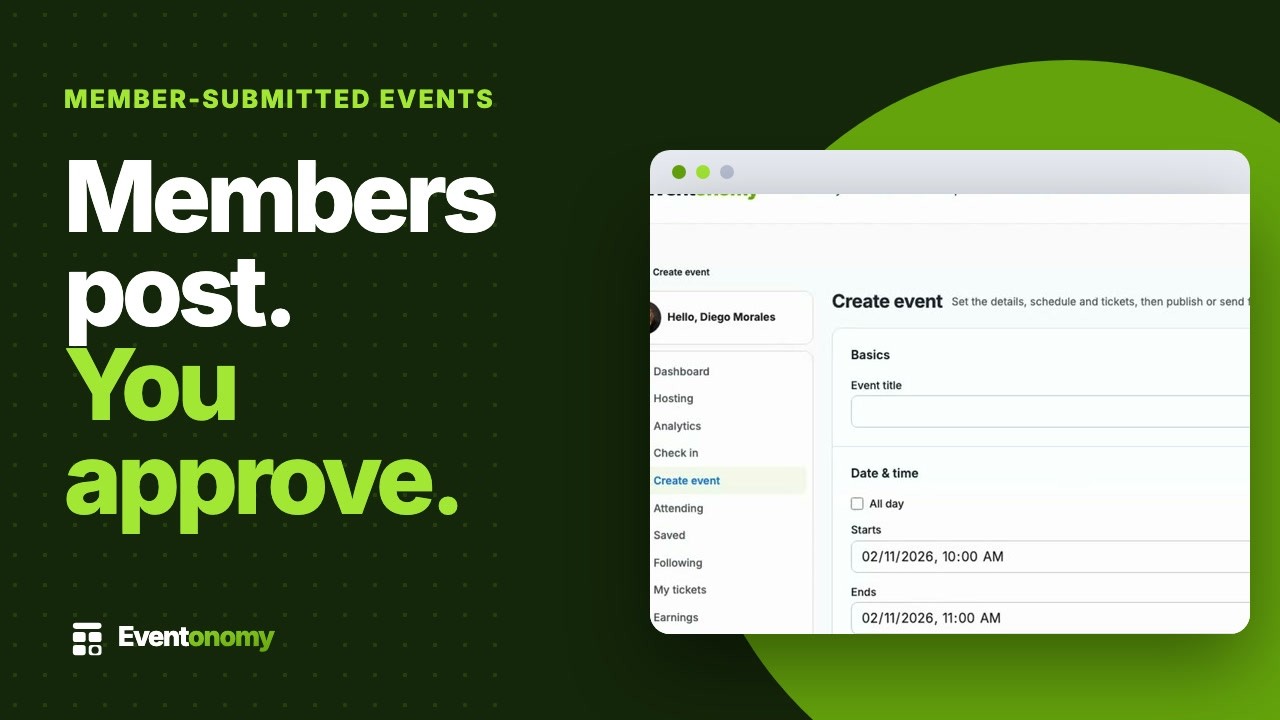
The form is a sectioned front-end editor built for Eventonomy, not the WordPress block editor, so members do not need to learn anything new. A new event opens on Basics, Date and time, Location and Description. The other sections are folded below and ready when needed.
Only two fields are required: a title and a start date and time. Everything else is optional:
- End date and time, timezone and an all day switch.
- Description, with buttons for bold, italic, links and lists. Scripts and frames are removed when the event is saved.
- Cover image, picked from the media library or uploaded.
- Categories (ticked from the ones you created) and tags.
- Venue and organizer, either picked from a shared catalog or typed in new.
- Virtual, for online events.
- Capacity, where blank means unlimited.
- Visibility, public or private. A private event is link-only: it stays out of lists, the calendar and search, but anyone with the link can view it and register.
- How people register, which has three modes: people register on your site, registration happens on another site (a Register button sends them to an address the organizer enters), or no registration is needed.
Two parts of that list are worth a closer look because they save you work later.
The venue and organizer catalog is shared. If a member types a venue that already exists, matched on name and city, the existing entry is reused instead of a duplicate being made. An address entered once serves every future event, and you can mark entries as Verified. That stops your calendar filling with five spellings of the same hall.
You stay in charge of the questions. If you use custom registration questions, you own the wording and options of each question in the bank under Settings, Registration. The organizer only chooses which of them their own event asks. A member cannot invent questions of their own.
One more guardrail: marking an event as Featured is a site-wide promotion, so it needs an Editor-level capability. A member who created the event but is not an Editor cannot feature it. The flag is dropped on save.
How do you approve events before they go live?
Open submissions without review is a fine choice for a small, trusted group. For anything wider, turn on approval. In the Who can create events card, New events from members has two choices: Publish immediately and Hold for my approval. Choose the second.
From then on:
- The editor shows Submit for review instead of Publish to members. Their submissions are forced to Pending review. A member can still choose Save draft to park unfinished work without entering the queue.
- You find the waiting events in Eventonomy, Moderation, on the Waiting for approval tab. It lists the title, who submitted it, when, and when it starts, oldest first. The badge on the menu shows how many events are waiting.
- For each event you choose Approve, Reject or Edit. Approve publishes it. Edit opens it in the admin so you can fix a typo first. Reject asks you to confirm, with an optional reason that is sent to the organizer, and moves the event back to draft so they can fix it and resubmit.
- Either way the organizer gets an email with the outcome. Your own events are never held, and neither are events from Editors and Administrators, who publish directly.
After submitting, the member sees Submitted for review with a note that an administrator will review the event and email them, plus a Go to my events button, so nobody is left wondering whether it worked.
A detail that surprises people: approval is a one-time check. Once an event is live, its owner can fix a time or a typo and it stays live. If you would rather re-check every edit, that is not what approval mode does, so plan your trust level around it. The exception is an event the owner moves back to Draft: it goes through review again when they publish it.
The Moderation inbox has a second tab, Reported, for events that members flag from the event page. We come back to it under spam below. The full reference is in Moderation inbox and Submission settings.
How do members edit their events later?
This is where a dashboard earns its place over a one-off form. From My Events a member sees every event they created, with tabs for All, Draft, Pending, Published, Past and Cancelled. On each row they can:
- View the public event page.
- Edit it in the same form.
- Manage attendees, which opens the attendee table, exports and the Email attendees panel for that event.
- Duplicate it into a fresh draft, which is the quickest way to post next month’s meeting.
- Cancel it, for pending, published and private events.
The overview shows stat cards for events, upcoming events, drafts, registrations and attending, plus a spotlight on the member’s next event. A member can also edit the venues and organizers they added, and update their public profile, without ever opening wp-admin.
That last point is the real gain for you. When members can fix their own events, the “can you change the time on mine?” emails stop.
Can members submit recurring events?
Yes. The event editor has a Recurrence panel, and it is on by default. In the free plugin a member picks Repeats (daily, weekly or monthly) and Every, the interval, so “every 2 weeks” or “every month” works. Eventonomy then creates a real entry for each date, up to a horizon you set (12 months ahead by default), so each date appears in the calendar.
Anything more specific than a plain interval is Pro: choosing particular weekdays, “the second Tuesday of every month”, an end date or count, and skipping dates. Yearly repeats also need Pro, even though the option shows in the dropdown.
For a community calendar, the free options cover the common cases. A weekly walking group or a monthly book club needs nothing more. Details are in Recurring events.
How do you keep spam and junk events out?
Be realistic about this one. Eventonomy’s documented anti-spam tools, a hidden honeypot field and a limit of 10 RSVPs and 10 orders per IP per 10 minutes, protect the public RSVP and order forms. They are not described as protecting the event submission form, so we do not claim that they do.
What keeps junk off your calendar is the structure around the form:
- A login is required. Spammers have to register first, which is a hurdle you control with the usual WordPress registration settings.
- A minimum role keeps casual accounts out, if you want that.
- An events-per-member cap limits the damage one bad account can do.
- Approval mode means nothing reaches the public calendar until you have seen it. This is the control that matters most.
- Reports let your community help. A logged-in member can flag any live event with a reason: spam or a duplicate, a scam or fake event, wrong details, offensive content or something else. You and the event’s organizer are both emailed, and the report appears on the Reported tab. Reporting is capped at five per hour per member.
If a report is right, Unpublish event moves the event to draft so the public can no longer see it. Attendees and orders are kept, and you can publish it again later. Dismiss report marks it handled without touching the event. If you would like a CAPTCHA on the registration form that feeds your site, that is a job for your registration plugin, not for the event form.
What emails and notifications are involved?
Several emails fire on their own, and they cover most of the back-and-forth you would otherwise do by hand:
| Moment | Who is emailed |
|---|---|
| A member submits an event | Your site admin address |
| You approve or reject an event | The event organizer |
| A member reports an event | Your site admin address, and the event’s organizer |
| Someone RSVPs, or an event is cancelled or changed | The attendees |
The admin notice for new submissions is on by default and you can switch it off at Eventonomy, Settings, Messaging, Email. It is most useful when approval mode is on, because it tells you something is waiting. You also set the sender name and address there. The approval and rejection emails are also editable as templates.
If your site runs BuddyNext, the approval result can also show up in the member’s notification bell as “Your event was approved”. The admin submission notice stays email-only. All of this is covered in Emails.
What is free and what needs Pro?
Everything in the flow above is in the free plugin:
- The Manage Events dashboard and the standalone Event Editor block.
- Role gating, the per-member cap and approval mode.
- The Moderation inbox, with approve, reject and report handling.
- The shared venue and organizer catalog.
- Daily, weekly and monthly recurrence.
- The emails listed above.
Pro adds things around the edges rather than the core submission flow. For community calendars the useful ones are member calendar import (a member connects a public iCalendar address or an Eventbrite account, and the events keep syncing), Saved events and My Tickets sections in the dashboard, the richer recurrence rules, and the per-role capability matrix. Imported events belong to the member who connected the calendar and go through your approval queue like any other submission. Meetup is not supported.
Eventonomy is self-hosted, so there is no per-ticket platform fee and no per-user fee, however many members submit. The side-by-side list is on Free vs Pro.
How much effort is this compared with a hand-built form?
It helps to price the do-it-yourself route honestly. A form that works like this needs more than the fields on screen. You would need to build or buy:
- A form that creates a real event record rather than an email.
- Login and role checks, so the right people can post.
- A pending state, a review screen and approve and reject actions.
- Emails to you on submit and to the member on the outcome.
- A place for members to see, edit and cancel what they posted.
- Reuse of venues so the same hall is not typed five ways.
- Handling for recurring dates, time zones and cancelled events.
Each item is simple alone. Together they are a small application that you then have to keep working through WordPress updates. A generic form plugin plus a post-creation add-on gets you part of the way, but you still wire the review queue and the member dashboard yourself.
With Eventonomy the whole path is already there and is one block on one page. The honest trade is that you accept its form and its dashboard instead of designing your own. If you need a very unusual form, that matters. For a community calendar where members post meetings, classes and meetups, the stock form covers it, and you spend your time approving events rather than building the machinery.
How do you test it before you announce it?
Do one pass as a member before you tell anyone. It takes a few minutes and finds nearly every surprise.
- Create a test account with the lowest role that should be allowed to submit, and sign in as that user in a private window.
- Open
/manage-events/. Confirm you see Create event. Then change the minimum role above the test user’s and confirm the item disappears. - Submit an event with approval on. Check that the editor says Submit for review, that the event shows under Pending on the dashboard, and that it does not appear on your public calendar.
- As an admin, open Eventonomy, Moderation and approve it. Check that the test user gets the email and that the event now shows in your calendar and lists.
- Reject a second event with a reason and confirm the reason arrives in the email.
- Hit your cap on purpose and check the message reads clearly.
Then look at the page at phone width, since that is where many members will be when they post. If something reads badly there, fix the page around the block before launch.
Once it works, tell your community where to post, and say what to expect: a review step, and an email when the event goes live. People are patient with a queue when they know it exists.
Frequently asked questions
Do people need an account to submit an event? Yes. Members submit from a logged-in dashboard, and signed-out visitors are asked to log in. Whether attendees need an account to RSVP is a separate setting.
Can I turn the approval step off later? Yes. Switch New events from members back to Publish immediately whenever your community has earned that trust. Events already in the queue stay there until you act on them.
Where do approved events show up? In your calendar, event lists and search like any other event. Add a calendar to a page with the steps in how to add an events calendar to WordPress.
What if a member wants to cancel? They use Cancel on the event row in My Events. Cancelling changes the status to Cancelled and notifies people who registered.
Is there a place to send people who run a meetup rather than a whole community? Yes, see Eventonomy for meetups and for communities. For the sign-up side of the events your members post, read about RSVPs and waitlists.
Questions
How can I let community members submit their own events to my WordPress calendar?
Put a front-end event form on a page, decide which logged-in members may use it, and turn on approval so each submission waits for you. With Eventonomy the form, the member dashboard at /manage-events/ and the approval queue are all in the free plugin.
Do people need an account to submit an event?
Yes. Members submit from a logged-in dashboard, and the Eventonomy docs describe no anonymous submission form. A member who is signed out sees a notice asking them to log in. Attendees are different: whether they need an account to RSVP is a separate setting.
Can I review events before they appear on the calendar?
Yes. Set New events from members to Hold for my approval. Submissions then land in Eventonomy, Moderation, under Waiting for approval, where you approve, edit or reject each one. The organizer gets an email with the result.
Can I limit who is allowed to submit?
Yes. Choose a minimum WordPress role, or leave it blank to allow any logged-in user. You can also cap how many events one member may create. Administrators are never capped.
Can members edit an event after it is approved?
Yes. Approval is a one-time check. Once an event is published, its owner can edit it at any time and it stays live. If the owner moves it back to Draft, it goes through review again when they publish it.
Can members submit recurring events?
Yes. The same editor has a Recurrence panel. The free plugin repeats daily, weekly or monthly at an interval you pick. Specific weekdays, a second Tuesday and similar rules need Pro.
What stops spam submissions?
Several controls work together: submission needs a login, you can set a minimum role, you can cap events per member, and approval mode keeps anything from going live unseen. Members can also report a live event, and you review reports in the Moderation inbox. The honeypot and rate limit in the docs protect RSVP and order forms, not the event form.
What does it cost to run?
Eventonomy is self-hosted, with no per-ticket platform fee and no per-user fee. Frontend submission, the dashboard and the approval queue are free. Pro adds extras such as member calendar import.