Managing Events
The Events screen in wp-admin is the central place to see, filter, and act on all events across your site. Organizers manage their own events from the frontend My Events dashboard.
What You Will Learn
- How to view and filter events in the admin
- What the event statuses mean
- How to edit, duplicate, cancel, or delete an event
- How the My Events dashboard works for organizers
The Events Admin Screen
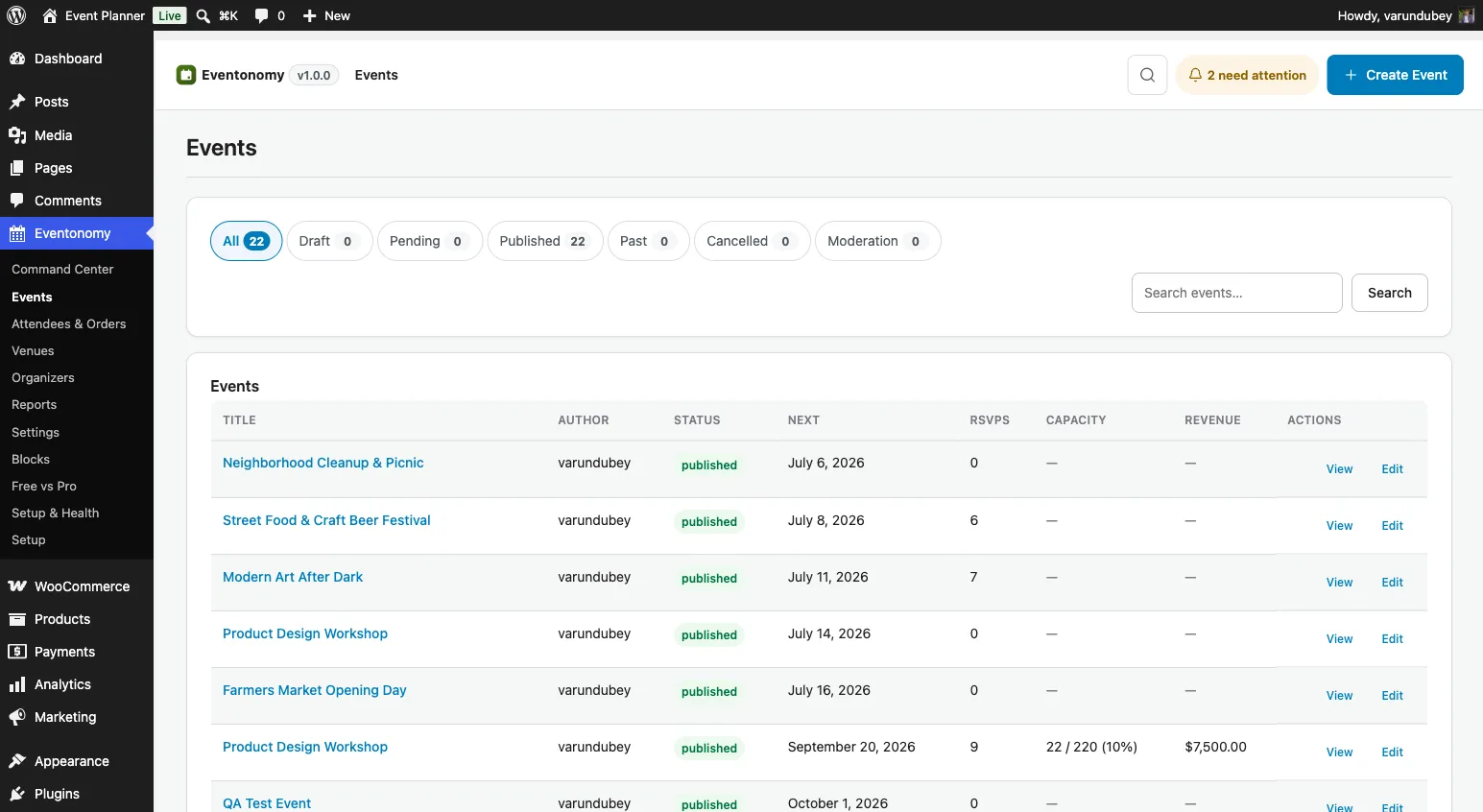
Go to Eventonomy → Events to see all events. The table shows:
- Title - opens that event's workspace.
- Author - the WordPress user who created the event. (Not the same thing as the event's Organizer, which is a catalog entry.)
- Status - Published, Pending, Draft, Cancelled, or Private.
- Next - the next upcoming occurrence.
- RSVPs - how many people are going.
- Capacity - sold against capacity as a percentage, for ticketed events. A dash when the event has no capacity set.
- Revenue - the total from paid orders. A dash when there are none.
- Actions - View, Edit and Duplicate.
Title, Status and Next are sortable: click the column heading to sort by it.
Finding the Events You Want
Above the table sits a lifecycle pipeline with a count against each stage:
| Stage | What it shows |
|---|---|
| All | Every event. |
| Draft | Not yet submitted or published. |
| Pending | Awaiting review. Opens the Waiting for approval tab of the Moderation inbox. |
| Published | Live. |
| Past | Published events whose next occurrence is already behind us. |
| Cancelled | Cancelled, but still on the site. |
| Reported | Events members have reported, with the count of open reports. Opens the Reported tab of the Moderation inbox. |
Below the pipeline are two more controls, and they compose with the stage you picked rather than replacing it:
- Search - matches the event title and description. It is a full-text search, so ordinary words find events even when the wording is not an exact match; a
*in the term switches to a literal partial match instead. - Category - narrows to one category.
Your stage, search, category and sort are all carried across as you navigate, so you never lose your place. The table is paginated ("Showing 1-20 of 340") with Prev / Next links.
No date-range filter here. The admin table filters by lifecycle stage rather than by date; the Past stage is how you reach older events. Visitors on the front end do get a date range, in the Search & Filter block.
Acting on Several Events at Once
Tick the checkbox on each row (or the one in the header to select the page) and choose a bulk action: Publish, Move to draft, Cancel event, or Delete permanently. The destructive ones ask for confirmation first.
Event Statuses
| Status | Visible to the public | Who can set it |
|---|---|---|
draft |
No | Event owner, admins |
pending |
No (admins see it) | Submitted by members when Approval mode is on |
published |
Yes | Event owner (if no approval required), admins |
cancelled |
Yes, shows a "Cancelled" label | Event owner, admins |
private |
Link-only: not listed, but anyone with the event's link can open it | Event owner, admins |
An event can also have no date ("Date to be announced") and can be link-only. See Undated and Link-Only Events.
Note: Eventonomy uses
published(not WordPress'spublish) for its own event status values. The pages Eventonomy creates use WordPress'spublishas normal; these are different things.
Editing an Event
Click the event title to open its workspace, or the Edit row action to go straight to the event editor. Make your changes and click Save; the change is saved in place without a page reload.
Editing a recurring event edits the whole series. There is no "this occurrence only" or "this and future" choice: change the schedule and the occurrences are recomputed from the new rule, keeping any date you have already cancelled individually from the editor - see Recurring events. If one date needs different details, create a separate one-off event for it.
Duplicating an Event
Recurring galas, monthly meetups with a twist, "same as last year" conferences: duplicate an existing event instead of retyping it. The copy is available in two places:
- Admin - the Duplicate button on each row of the Events screen.
- Frontend - the Duplicate action on your event rows in the My Events dashboard, which drops you straight into the editor on the new copy.
What the copy contains: the title (suffixed "(Copy)"), description and excerpt, start/end times, timezone, visibility, the featured/online/all-day flags, city and country, the recurrence rule, per-event settings (capacity, cover image, online-event join details, the registration mode and the event's registration-question selection), the venue and organizer (reusing the same catalog entries), categories and tags, and every ticket type definition (names, prices, capacities, sale windows) with sold counts reset to zero.
Because a duplicate copies the source event's settings wholesale, it inherits that event's registration mode and question selection - not the site-wide New events start as default. Duplicating an announcement gives you another announcement, which is usually what you want; change it on the copy if it is not.
What it deliberately does not contain: RSVPs, attendees, orders, and sold counts (inventory belongs to the original event); the URL slug (a fresh one is derived from the new title; you can edit it directly in the editor); and the original author (whoever duplicates the event owns the copy).
The copy is always created as a draft, regardless of the source event's status, so nothing goes live until you review it, set the new date, and publish.
Cancelling an Event
Set an event's status to Cancelled to mark it as cancelled without deleting it. Attendees who have RSVP'd receive a cancellation notification email (if enabled). The event remains on the Events page with a "Cancelled" label so attendees who search for it can see the status.
Deleting an Event
There are two places to delete an event:
- Admin - tick the event (or several) and choose the Delete permanently bulk action. There is deliberately no one-click Delete button on the row: deletion is destructive and takes a confirmation.
- Frontend - Delete event at the bottom of the event editor, which asks you to confirm inline before it goes ahead.
Eventonomy has no trash and no soft-delete: events live in their own table, not in WordPress posts, so there is no trash bin to recover them from and no "Force delete" option to escalate to. Delete means delete.
Warning: Deleting an event cascades to all its occurrences, RSVPs, tickets, and orders. This is immediate and cannot be undone. If you only want to take an event off the calendar, set its status to Cancelled or Draft instead - both are reversible.
The My Events Dashboard (Frontend)
Members who create events manage them from the My Events page (/manage-events/). The left-hand nav has these destinations:
- Dashboard - five stat cards (Events, Upcoming, Drafts, Registrations, Attending), a "Your next event" spotlight with countdown, and recent events.
- Hosting - a list of the member's own events, filterable by All / Draft / Pending / Published / Past / Cancelled, with actions (Edit, View, Duplicate, Cancel, Manage attendees).
- Create event - the full event-editor form, embedded in the dashboard. Hidden from members who are not allowed to create events.
- Attending - a paginated list of events the member has RSVP'd to.
- Venues & organizers - the venues and organizers this member has added, editable without going near wp-admin.
- Profile - the member's public profile, plus their billing details for receipts and invoices.
Pro - Eventonomy Pro adds Saved (events the member has bookmarked) and My Tickets (their orders and tickets) straight after Attending. Two more appear when the matching feature is switched on: Earnings for organizers when earnings are enabled, and Connect & Import when member calendar sync is allowed.
Note: Members see only their own events in the My Events dashboard. Site admins see all events in the wp-admin Events screen.
Organizers who run paid events can also review who bought and how much from the frontend, without touching wp-admin; see the Sales panel in Attendees & Orders.
What's Next?
Learn how to create events that repeat on a schedule.
Choosing how the event page looks
Under Display in the editor, Layout decides the shape of this event's page - cover, columns and where registration sits. Leave it on the site default unless this event needs something different: a festival reads better as Poster, a multi-date class as Agenda, a webinar as Online. Free offers Classic and Compact; the other three come with Pro.
A virtual event uses Online automatically when you have not chosen anything, so you normally do not need to set it. Full descriptions of each layout are in The Single Event block.