Create Your First Event
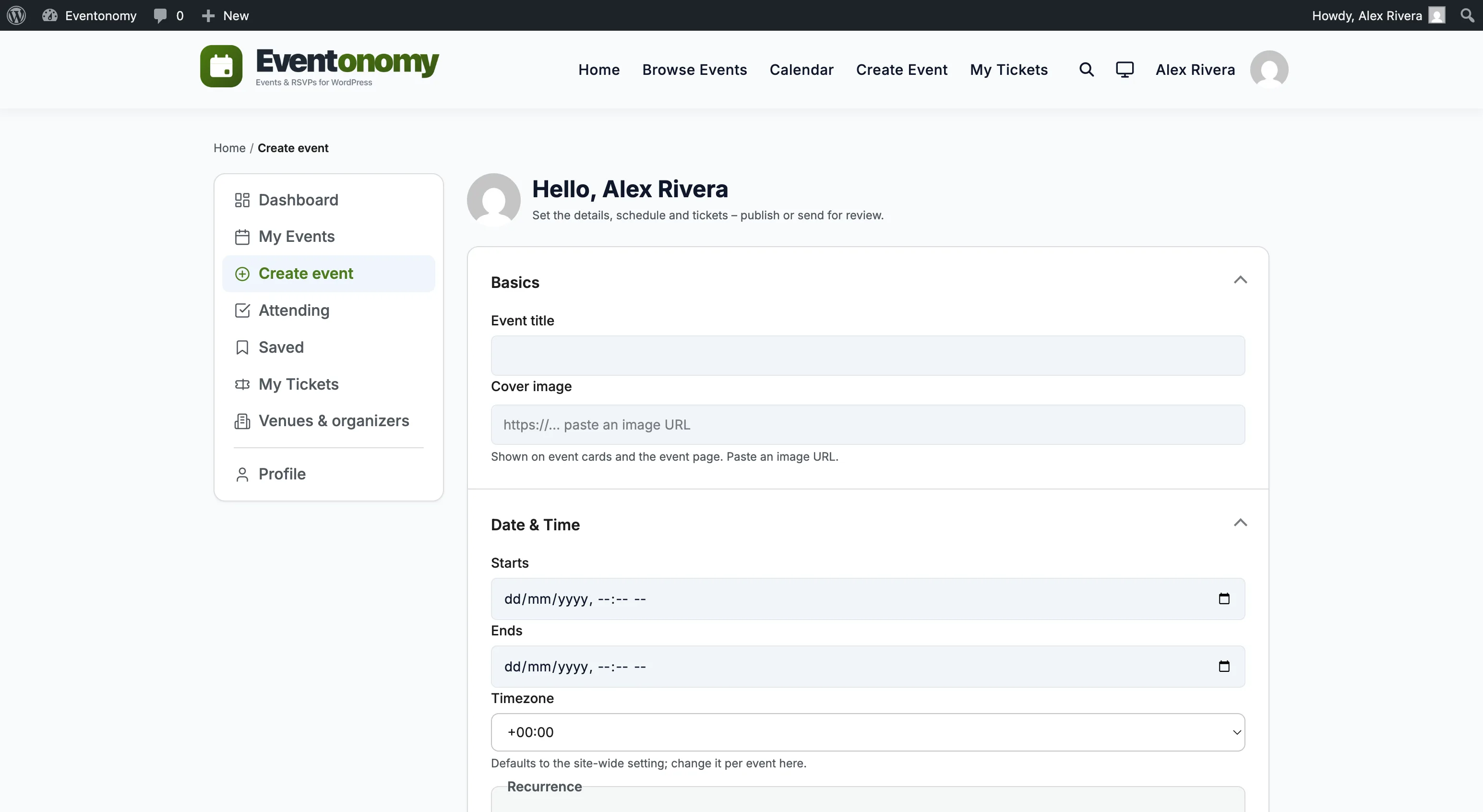
You can create events from the WordPress admin or from the frontend member dashboard. Both paths use the same block-based editor and save to the same data store.
What You Will Learn
- How to create an event from the admin
- How to create an event from the frontend
- What each field on the event form does
- How to publish, save as draft, or submit for review
Creating an Event from the Admin
- Go to Eventonomy → Events in the WordPress admin.
- Click Add Event.
- Fill in the event details (see fields below).
- Click Publish (or Save Draft to save without publishing).
The admin editor opens the same block-based event-editor experience used on the frontend, embedded inside the Eventonomy admin shell.
Creating an Event from the Frontend
- Navigate to your site's My Events page (default:
/manage-events/). - Click Create event in the left-hand nav.
- Fill in the event details.
- Click Submit (or Save draft).
If Approval mode is on in Settings, your event goes into a pending review queue. The admin approves it before it goes live.
Event Fields
Required
| Field | Description |
|---|---|
| Title | The event name. Shown on cards, the single-event page, calendar cells, and ICS exports. |
| Start date & time | When the event begins. Sets the anchor occurrence for recurring events. |
Common optional fields
| Field | Description |
|---|---|
| End date & time | When the event ends. Defaults to Start + the default duration set in Display settings. |
| Timezone | The event's local timezone. Defaults to the site timezone unless you pick one. |
| All day | Toggle for events with no specific time (the frontend hides the time). |
| Description | Full HTML body rendered on the single-event page. |
| Cover image | Featured image displayed on event cards and the single-event hero. |
| Categories | Tick any of the categories the site owner has set up. The picker only appears once at least one category exists, so create yours first at Eventonomy → Categories & Tags. See Categories & Tags. |
| Tags | A free-text field, comma-separated. A tag that does not exist yet is created the first time it is used. |
| Venue | Search and pick an existing venue or type a new one. Name and address are stored; city is indexed for search. |
| Organizer | Search and pick an existing organizer or type a new one. |
| Virtual | Toggle for online events. Hides the map on the single-event page. |
| Status | Draft or Published. With approval mode on, non-moderators get Draft (save for later) and Submit for review instead. See below. |
| Visibility | Public or Private. Private events are only visible to logged-in users with the right capability. |
| Featured | Marks the event as featured, so it can be highlighted in listings and the discovery feed. This is a site-wide promotion, so it needs evnm_edit_others_events (mapped to edit_others_posts - Editor and above). A member who created the event but does not have that capability cannot feature it: the flag is dropped on save rather than rejected, on every write path (create, edit, the editor checkbox, and duplicate). See Capability map. |
| Capacity | Maximum number of attendees. Leave blank for unlimited. |
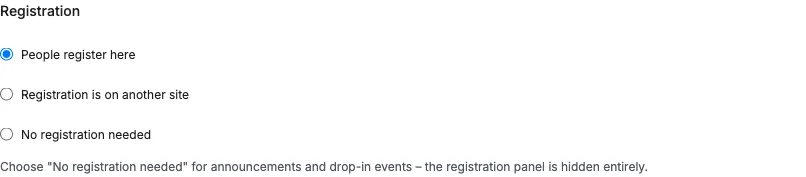
| How people register | Choose one of three modes - see below. |
| Recurrence | Make the event repeat. The Free editor has two controls: Repeats (Daily, Weekly or Monthly) and Every (interval). Pro adds the rest. See Recurring Events. |
| Tickets | Add ticket types (free, donation, or paid). See Tickets & Checkout. |
How People Register
Not every event takes sign-ups on your site, so this is a choice of three, not an on/off switch:
| Mode | Use it when | What the event page shows |
|---|---|---|
| People register here | You want RSVPs or ticket sales on your own site. | The RSVP panel, spots remaining, and any tickets. |
| Registration is on another site | Sign-ups happen on Eventbrite, Meetup, a partner's site, a Google Form. | A Register button that sends people to the address you enter, with the destination shown so nobody is surprised by where they land. No RSVP panel. |
| No registration needed | Drop-in sessions, open days, announcements, "just turn up" events. | Neither an RSVP panel nor spots remaining - the page is purely informational. |
Choosing Registration is on another site reveals a Registration URL field. Fill it in: without an address the button has nowhere to go, so the event falls back to showing no registration at all.
The mode is enforced on the server, not just hidden in the page. An event set to another site or no registration will refuse RSVPs and orders even if a request is crafted by hand, so the button you see and the rule the site applies can never disagree.
Existing events keep taking registrations: anything created before this setting existed reads as People register here.
Which mode a new event opens on is the site owner's choice. Set New events start as at Eventonomy → Settings → Registration and every new event starts there instead of always on People register here - useful if you mostly post announcements. It is only a starting value: you can still change the mode on any individual event, and it never alters events that already exist.
Questions to ask when people register
If the site owner has written registration questions (Settings → Registration), the Registration section also shows "Questions to ask when people register" - one checkbox per question. Your event starts with all of them ticked; untick anything it does not need. The site owner owns the wording, the answer type and the options, which is what keeps answers comparable across events; you choose which of them your event asks.
The picker only appears while the event is set to People register here - the other two modes have no form to ask questions on. Switching away hides it and switching back returns your selection untouched.
Publishing vs. Draft vs. Pending
| Status | When to use |
|---|---|
| Draft | Work in progress. Only you and admins can see it. |
| Pending review | Submitted for moderation. Visible to admins only until approved. |
| Published | Live on the site. Visible to everyone (or to logged-in users if visibility is Private). |
Pending review is a status the site applies, not one you pick. When Require approval before submitted events are published is off (Settings → Setup), the Status control offers only Draft and Published; an event that is already awaiting review shows Pending review as a read-only reminder of where it stands.
With approval on, anyone who cannot moderate sees Draft (save for later) and Submit for review in place of Published, and a publish attempt is forced to Pending review on the server as well, so the two can never disagree. Your own admin-created events are unaffected.
What's Next?
Place blocks on your pages to display events to visitors.