How to Migrate from Another Events Plugin
This guide moves your existing events into Eventonomy: from The Events Calendar, EventON, Events Manager, WP Event Manager, or Sugar Calendar, or from a CSV or iCalendar file. The importer previews everything before it touches your database, redirects your old event URLs, never duplicates on a re-run, and can be fully undone. Everything here is available on the Free plan.
What You Will Learn
- Which source plugins and file formats you can import from
- How the scan → preview → import → verify flow works
- What happens to your old event URLs
- How to undo an import completely
- What each source plugin brings over (and what is deliberately left behind)
Supported Sources
| Source | How it's read |
|---|---|
| The Events Calendar | Directly from this site's database |
| EventON | Directly from this site's database |
| Events Manager | Directly from this site's database |
| WP Event Manager | Directly from this site's database |
| Sugar Calendar | Directly from this site's database |
| CSV file | Upload a spreadsheet export |
| iCalendar (.ics) | Upload a file or paste a feed URL |
The five plugin importers read the other plugin's rows straight from your database. The old plugin can stay installed or be deactivated; either works, and its data is never modified. When Eventonomy detects another events plugin's data on your site, it also shows a dismissible "events found" migration notice in wp-admin pointing you here.
What Is (and Isn't) Imported
Imported: events (title, description, dates, timezone, status, cover image), venues and organizers (deduplicated into Eventonomy's shared catalog), categories and tags, recurring rules where they translate, and online-event join links where the source stores them.
Not imported (by design): orders, payments, sold tickets, and check-in state: transaction history belongs to the old system. RSVPs/bookings are also not carried over.
Step 1: Open the Importer
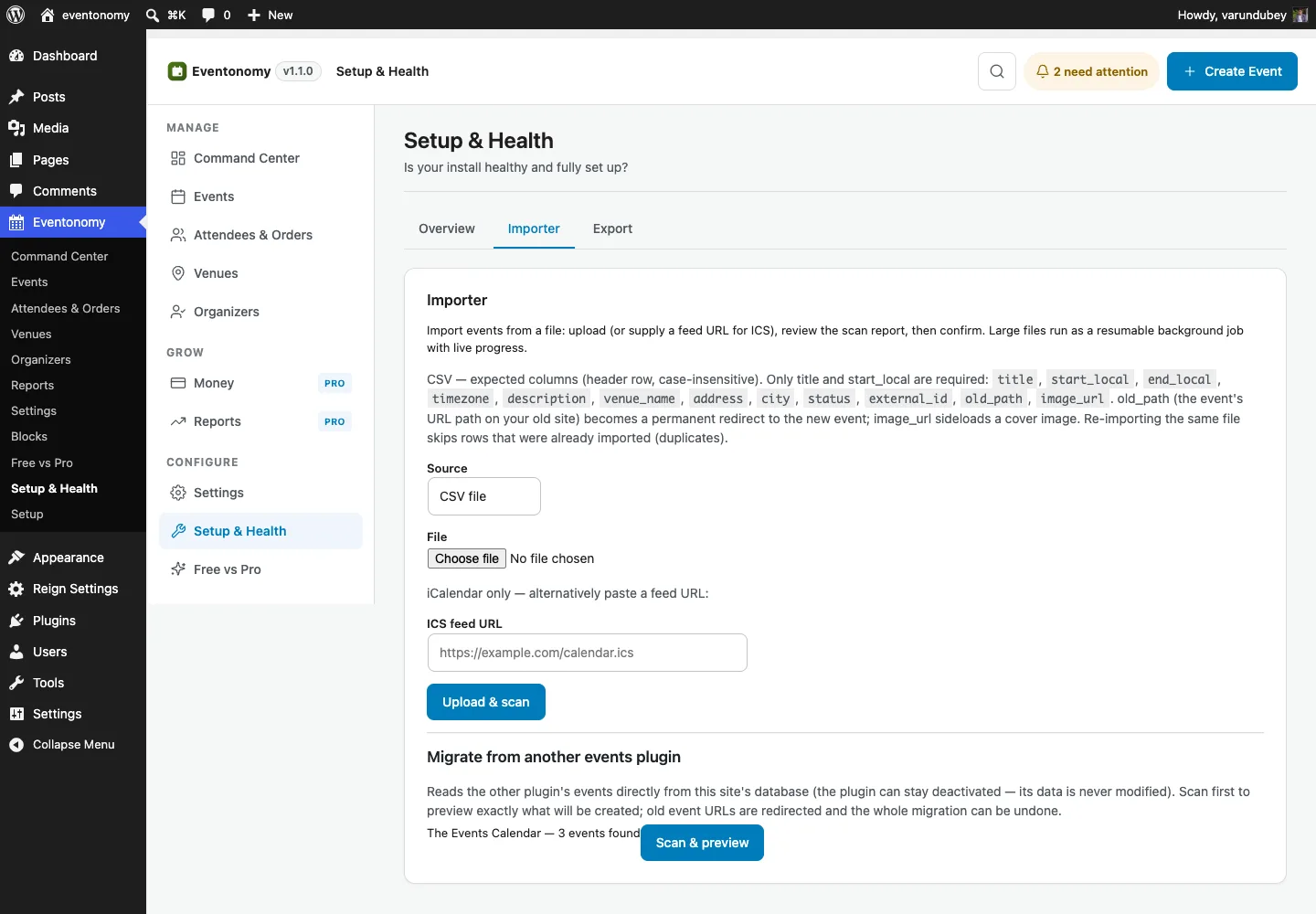
Go to Eventonomy → Setup & Health → Importer. Detected plugin sources appear under "Migrate from another events plugin" with the number of events found; file imports use the upload form above it.
Step 2: Scan & Preview
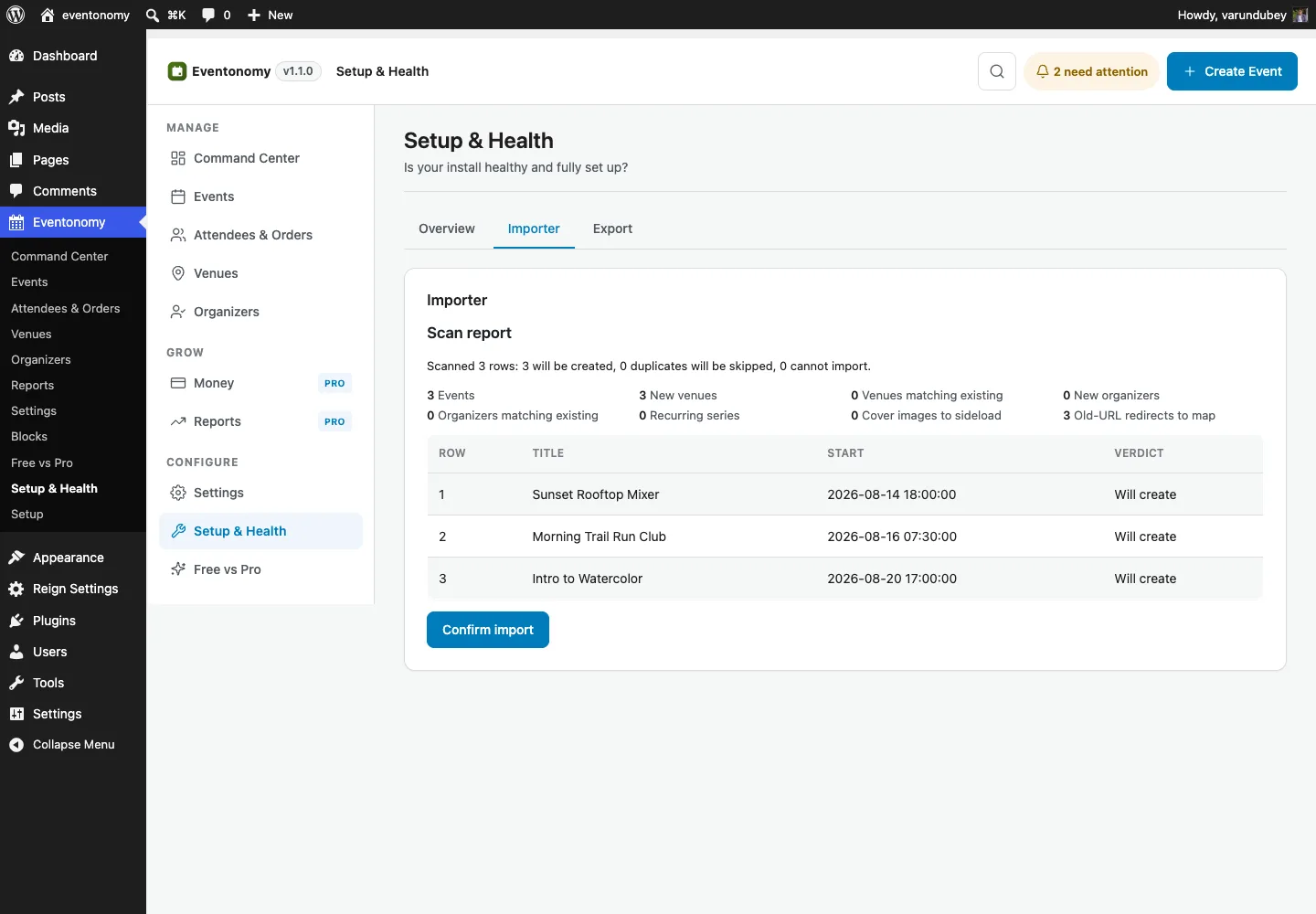
Click Scan & preview (or upload your file and scan it). The scan is a full dry run: nothing is created yet. The report tells you exactly what will happen:
- How many rows will be created, how many are duplicates that will be skipped, and how many cannot import (with a per-row reason).
- How many venues and organizers will be created new versus matched to existing catalog entries.
- How many cover images will be sideloaded, how many events are recurring, and how many old URLs will get redirects.
- Per-source flags worth reviewing, e.g. recurring rules that don't fully translate, or events where only the first of several organizers is kept.
Step 3: Import
Confirm from the report to run the real import.
- Small sets (up to 500 rows) import immediately while you wait.
- Larger sets run as a background job - a progress panel shows live counts (events created, duplicates skipped, images sideloaded, redirects mapped, errors) and keeps running even if you leave the page. A single failing row is logged and skipped; it never aborts the run.
How Large Can a Migration Be?
Large ones are fine, including on modest shared hosting. Each batch reads only the events it is about to import, so the work stays flat no matter how big the source site is - a 20,000 event migration uses roughly the same memory per batch as a 200 event one.
This was not always true. Earlier versions re-read the entire source on every batch, so a big migration could exhaust the host's memory limit and stop partway, then stop at the same place on every retry. If you hit that on an older version, re-run the import on 1.3.0 or later: everything already imported is skipped by its source reference, so the run picks up the remainder rather than duplicating what you have.
Step 4: Verify
Spot-check the result: open a few imported events on the frontend, check dates and timezones, and confirm venues/organizers landed in Eventonomy → Venues / Organizers. Recurring events are re-expanded by Eventonomy's own materializer from the translated rule.
Old URLs Redirect Automatically
Where the source exposes the old URL, the importer records it and 301-redirects visits to the old address to the new Eventonomy event page, so bookmarks, search results, and shared links keep working. Where the slug is free, the importer keeps it, so many URLs barely change at all.
Re-running Is Safe
Every imported row is tagged with its source reference. Running the same import again (after an interruption, or after new events were added in the old plugin) skips everything already imported and only creates what's new. You never get duplicates.
Undoing an Import
Everything imported from a source can be removed from Setup & Health → Importer → Remove imported items. Type REMOVE in the confirmation field to start it (this guard is deliberate: the removal cascades).
The undo is per source, not per run: it removes everything imported from that source, including earlier imports, so check the event count shown next to the source before you confirm. It deletes the events (with their occurrences and any RSVPs collected since), sideloaded cover images, its redirects, and import-created venues/organizers/terms, but catalog entries still used by your own events are kept. After an undo, re-importing creates everything fresh. If you already deleted some imported events by hand, the undo clears the import records they left behind and still finishes.
Per-Source Notes
- The Events Calendar - recurring rules (TEC Pro) are translated to Eventonomy recurrence where possible; untranslatable rules import as single events and are flagged in the preview. Events with multiple organizers keep the first one (noted as "kept first of N" in the report). Venue coordinates import when TEC Pro stored them.
- EventON - repeat dates are already stored as an explicit list, so each one becomes a real occurrence directly. Venue and organizer details (including coordinates, available in EventON's free version) carry into the catalog, and virtual events keep their join link.
- Events Manager - free recurring series import as one recurring Eventonomy event (the rule is translated; the source's per-date child posts are skipped so nothing double-imports). Events Manager has no organizer entity, so the event owner becomes the organizer.
- WP Event Manager - event-level map coordinates are copied onto the created venue (WP Event Manager stores them on the event, not the venue). "Expired" events import as normal past events.
- Sugar Calendar - the plain-text location string becomes a catalog venue (the preview asks you to verify the address). Sugar Calendar uses the same
/events/URL base as Eventonomy, so most event URLs come across unchanged, and the report calls out how many need no redirect at all. - CSV / iCalendar - the generic path for anything else. The expected CSV columns are listed right on the import screen (only
titleis required - leavestart_localblank for a date still to be announced; anold_pathcolumn becomes a redirect andimage_urlsideloads a cover image). ICS supports both file upload and a feed URL.
Next Steps
- Create Your First Event - if you're starting fresh instead.
- Venues & Organizers - review and merge the catalog entries the import created.
- Recurring Events - how imported recurring rules behave in Eventonomy.