Advanced Recurrence
Pro - Advanced recurrence rules require Eventonomy Pro.
Free Eventonomy handles simple repeats: daily, weekly or monthly, with an interval (see Recurring Events). Those are the only two controls the Free editor shows. Eventonomy Pro adds everything else - yearly repeats, specific weekdays, "the 2nd Tuesday of every month," "the last Friday," specific days of the month, an end-after count or end-on date, and dates to skip.
What You Will Learn
- What Pro adds on top of Free's basic recurrence
- How "nth weekday of the month" and "last weekday" rules work
- How to configure day-of-month and skip-date rules in the editor
- How the advanced engine expands your rule into occurrences
What Pro Adds
Free's editor offers a frequency (Daily, Weekly, Monthly) and an interval. Pro's full-rule editor and engine add everything beyond that:
| Rule | Example | Free | Pro |
|---|---|---|---|
| Yearly repeats | Once a year on the same date | - | ✓ |
| Specific weekdays (weekly) | Every Mon & Wed | - | ✓ |
| Specific weekdays (monthly) | On Tuesdays each month | - | ✓ |
| Nth weekday of the month | 2nd Tuesday of every month | - | ✓ |
| Last weekday of the month | Last Friday of every month | - | ✓ |
| Day of the month | The 15th of each month | - | ✓ |
| Last day of the month | The last day of each month | - | ✓ |
| End after N occurrences | Stop after 12 sessions | - | ✓ |
| End on a date | Stop on 31 December | - | ✓ |
| Skip dates (exceptions) | Repeat weekly, but skip Aug 5 | - | ✓ |
When Pro is active, its engine automatically takes over any event whose rule uses one of these advanced patterns; plain daily / weekly / monthly interval events keep using Free's engine unchanged.
What happens if you drop back to Free? Occurrences that were already generated stay where they are. But an advanced rule has no Free engine that understands it, so the series stops extending at the next recompute. Keep Pro active on a site that relies on advanced patterns.
Configuring an Advanced Rule
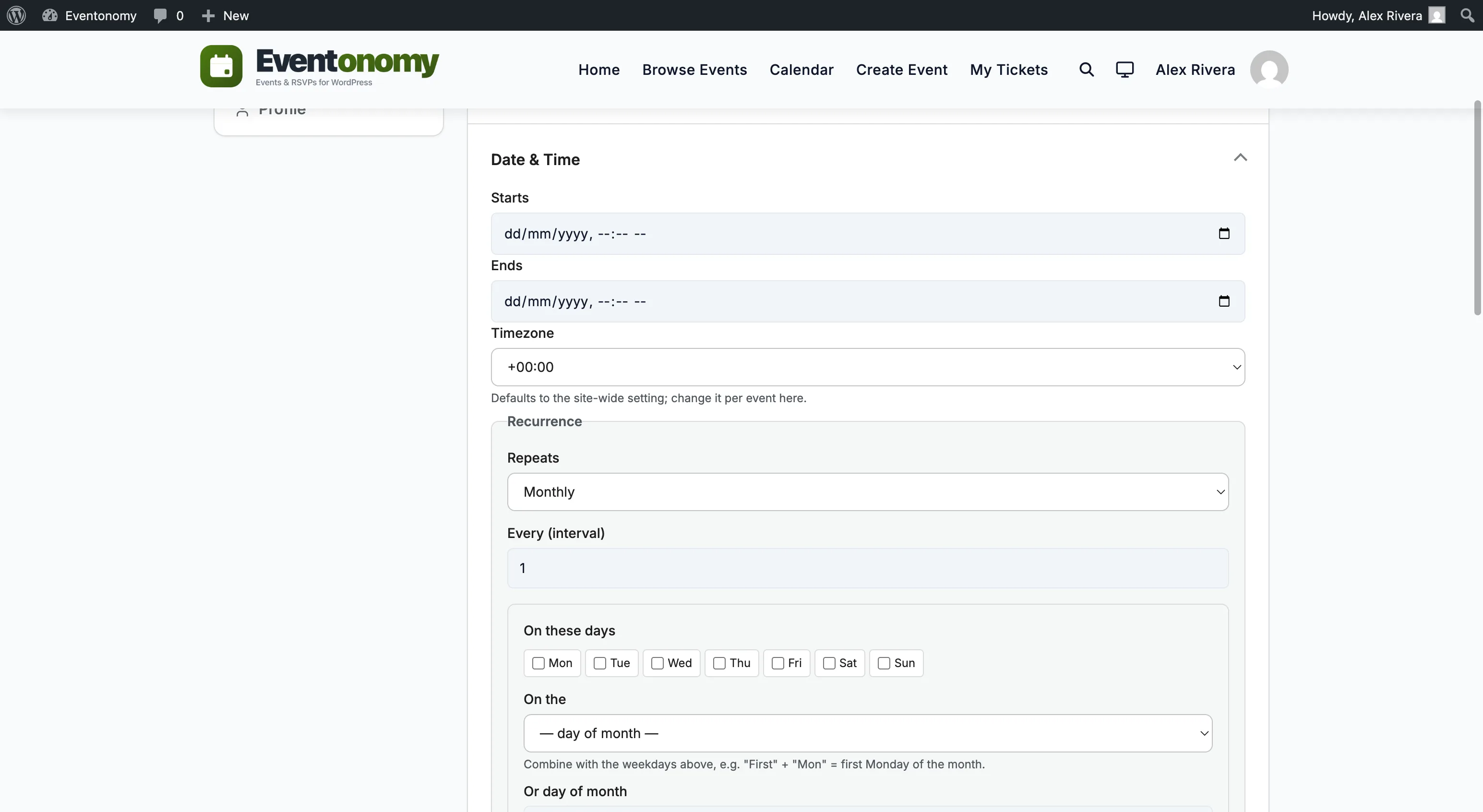
The advanced controls appear inside the event editor's Recurrence panel, directly below Free's basic frequency and interval fields. They show and hide based on the frequency you pick, so you only see the parts that apply.
On these days (weekdays)
For weekly and monthly rules, a row of weekday checkboxes (Mon to Sun) lets you pick the days the event lands on.
- On a weekly rule, checking Mon and Wed means the event repeats on Mondays and Wednesdays.
- On a monthly rule, the weekday selection combines with the position control below to build "nth weekday of the month" rules.
On the … (nth weekday of the month)
For monthly rules, the On the dropdown sets the ordinal position:
- First, Second, Third, Fourth, or Last.
Combine it with a weekday above to build the rule. For example, Last + Fri produces "the last Friday of every month," and Second + Tue produces "the 2nd Tuesday of every month."
Or day of month
Instead of a weekday position, a monthly rule can target a fixed calendar day with the Or day of month field (1 to 31). Enter 15 for "the 15th of each month." The engine also understands the last day of the month, so a rule can reliably land on month-end even in short months.
End after / end on date
Two fields bound the series:
- End after (occurrences) - stop after this many instances.
- Or end on date - stop on this calendar date.
Leave both blank to repeat up to the site's recurrence horizon (see Recurring Events for how the horizon and daily maintenance keep future dates ready).
Skip dates
The Skip dates field takes a comma-separated list of YYYY-MM-DD dates (for example 2026-08-05, 2026-09-02) that are removed from the series. Use it to knock a holiday or a one-off cancellation out of an otherwise regular schedule without breaking the rest of the pattern.
How Occurrences Are Generated
When you save the event, Pro's advanced engine expands your rule into individual occurrence rows in the evnm_occurrences table, the same materialized occurrences the calendar, RSVP counts, and per-date attendee lists use. The first date of the series (the event's start) is always included, even when it doesn't itself match the weekday or day-of-month pattern. Skip dates are removed, and the series is capped so a very long or open-ended rule can't run away.
Everything else about recurring events (how RSVPs work across a series, and how to update or cancel a single occurrence) works exactly as described for Free recurrence.
What's Next?
Learn how RSVPs and check-in work for the people attending your events.