Photo Grid Block Pro
Pro feature. Available in Eventonomy Pro.
Pro - The Photo Grid block requires Eventonomy Pro.
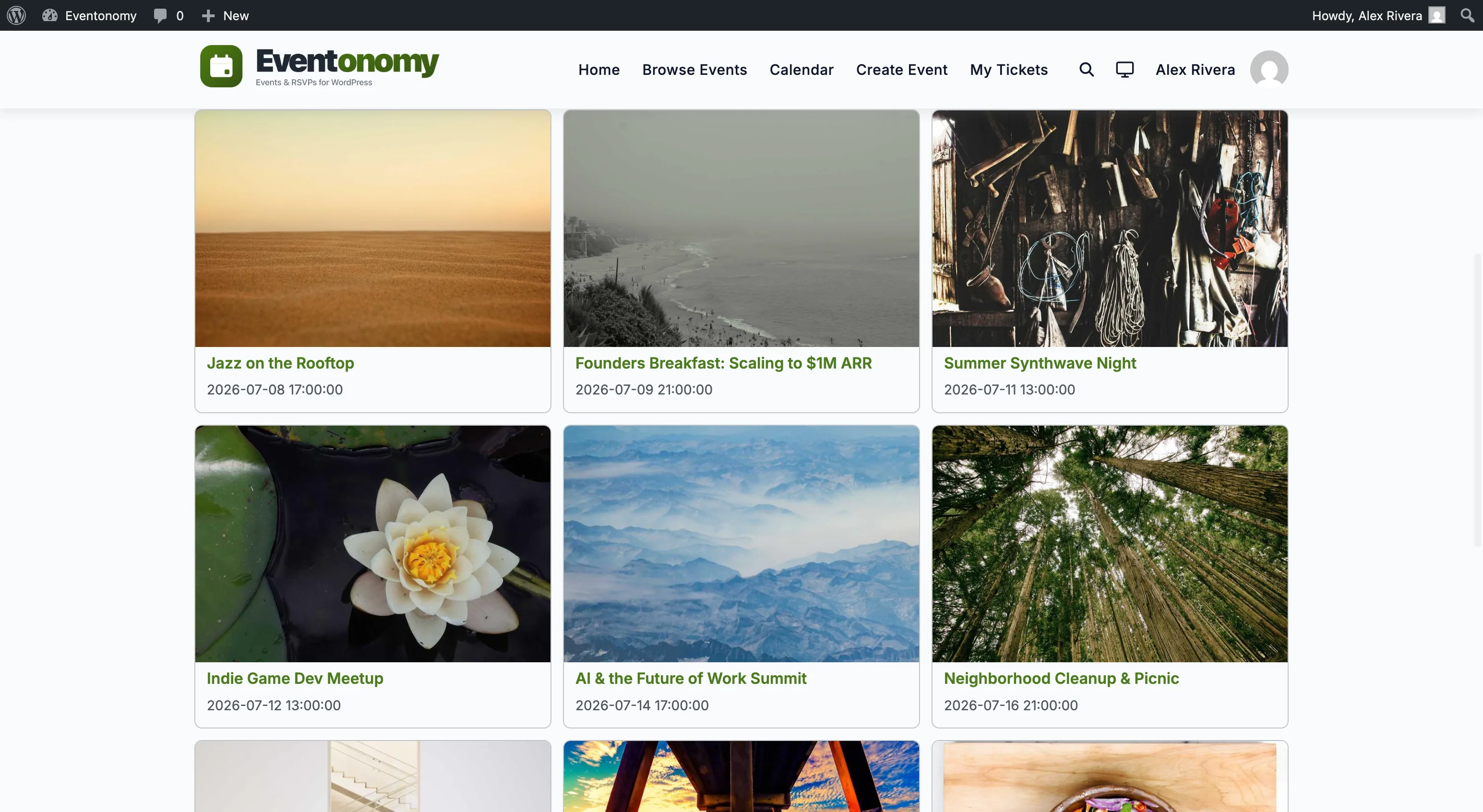
The eventonomy-pro/photo-grid block renders published events as a responsive image-forward grid. Each card shows the event's featured image, title, and date. A Load more button appends additional events client-side without a page reload.
What You Will Learn
- What the Photo Grid block displays and when to use it
- Where to place the block
- The configurable settings (columns, per-page, gap)
- How "Load more" works
What It Shows
Each card in the grid includes:
- Featured image - the cover image set in the event editor (
settings.image). If no image exists, the card renders a styled empty placeholder. - Event title - linked to the single-event page.
- Date - the next occurrence date (UTC), formatted per your site date format.
Only events with status = published appear.
Where to Place It
The Photo Grid block works on any page or post. Common placements:
- Homepage - a visual showcase of your upcoming events.
- Events archive - alongside or instead of the
eventonomy/events-listblock for a more image-forward layout. - Landing pages - embed in a marketing page to drive RSVPs.
To add the block:
- Open the page in the Block Editor.
- Click + and search for Eventonomy Photo Grid.
- Insert the block.
You can also place it with [eventonomy_photo_grid]. Since 1.6.0 every Pro block has a shortcode.
Block Settings
Open the block's Settings panel in the editor sidebar:
| Setting | Default | Range | Description |
|---|---|---|---|
| Per page | 12 | 1 to 48 | Events loaded on first render and on each "Load more" click. |
| Columns | 3 | 2 to 6 | Grid columns at desktop width. The layout stacks to 1 column on mobile. |
| Gap | 12 px | 0 to 32 px | Spacing between cards. |
Load More
When there are more published events than the Per page setting, a Load more button appears below the grid. Clicking it fetches the next page from GET /eventonomy/v1/events and appends the cards. The button hides automatically when all events are loaded.
The button state is driven by the shared eventonomy Interactivity store, so no separate JavaScript is needed.
What's Next?
Learn how members can discover events and follow organizers.