Event Views
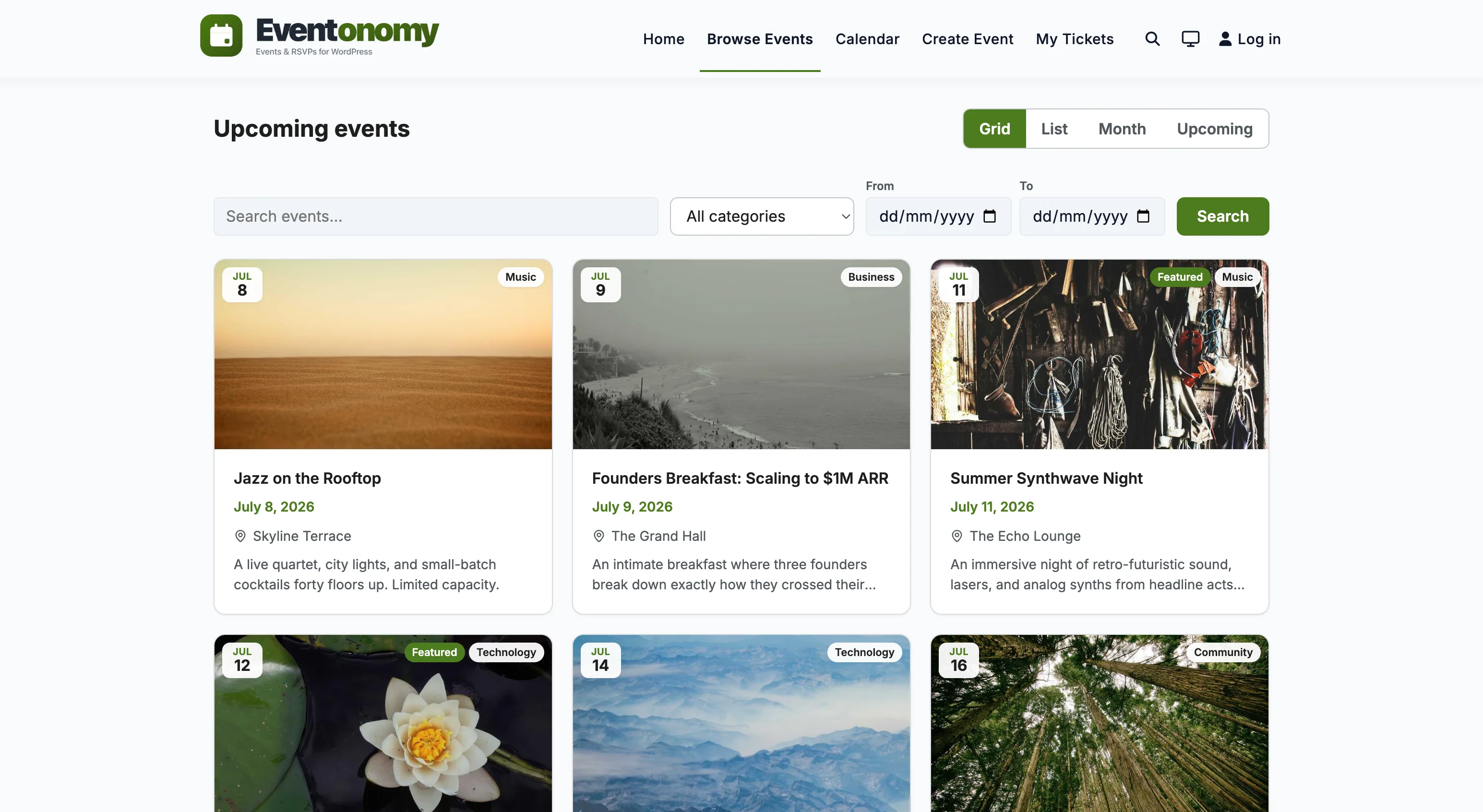
Eventonomy gives visitors four built-in ways to browse events: Grid, List, Month, and Upcoming. You control which views are available and which one opens by default.
What You Will Learn
- The four Free event views and when to use each one
- How to set the default view
- How to enable or disable specific views
- How the view switcher works
- Which additional views Pro adds
The Four Free Views
Grid
A card-based layout with the event cover image, title, date, venue, and RSVP counts. Good for visually-rich event listings where images matter.
URL: /events/grid/
List
A compact row layout (title, date, venue, and RSVP status) without images. Good for high-volume calendars where quick scanning matters more than visuals.
URL: /events/list/
Month
A traditional calendar grid showing events on their calendar dates. Visitors click a date to see that day's events. The month view is powered by the eventonomy/calendar block.
URL: /events/month/
Upcoming
A date-grouped agenda of what's coming, in chronological order. Instead of a flat list, events are grouped under human headings (Today, Tomorrow, This week, This weekend, Next week, Later this month, then month headers) as dense scannable rows. Good as a "what's on" page. The eventonomy/upcoming block renders a compact teaser version of this view for sidebars and homepages.
URL: /events/upcoming/
The bare /events/ URL shows whichever view you set as the default.
Setting the Default View
Go to Eventonomy → Settings → Appearance → Event views → Default view and choose Grid, List, Month, Upcoming, Week (Pro), or Day (Pro).
Pro - Week and Day options in the Default view dropdown require Eventonomy Pro.
Enabling and Disabling Views
Under Settings → Appearance → Event views → Enabled views (Free), tick the views you want visitors to be able to switch between. At least one must remain enabled (Grid is the fallback).
Disabling a view removes it from the view switcher. Its URL does not break: someone with an old /events/list/ link still lands on your events page, but sees the default view instead of an error. Turn every view off and Grid comes back as the fallback, because an events page has to show something.
The View Switcher
When Show a view switcher on the archive is on (Settings → Appearance), a row of view tabs appears at the top of the events page. Visitors click one to switch.
The switcher is rendered by the eventonomy/search-filter block, not by
eventonomy/events-list. If your events page does not have Search & Filter on
it, there is no switcher and visitors stay on whichever view is active. The
Events page Eventonomy creates on activation already includes it.
Each view is a real URL (/events/grid/, /events/month/ and so on), so
switching view loads that page - which also means a view is a link a visitor can
bookmark or share. Any active search, category or date filter is carried across
with them.
The switcher hides itself when it would have nothing to offer: if only one view is enabled, or if the switcher setting is off, the archive stays on the default view.
Events Per Page
Set how many events appear per page at Settings → Appearance → Event views → Events per page. The default is 10.
Visitors do not page through with next/previous links; the Events List block shows a Load more button that appends the next batch in place. The button disappears once there is nothing left to load.
Grid view rounds the number up. Grid lays cards out in rows of three, so a per-page of 10 fetches 12 and the last row is never left with gaps. List and Upcoming are single-column and use your number as-is.
Past Events
By default, the events archive shows only upcoming events. To include past events:
- Go to Settings → Appearance → Event views.
- Enable Show past events.
- Set Days of past events to show (0 = none; higher numbers include more history).
Pro Views
Pro - Week and Day calendar grids require Eventonomy Pro.
Activating Pro registers Week and Day as real browse views, so they get the same treatment as the Free four: a pretty URL, a ?evnm_view= alias, a tab in the view switcher, and a checkbox in Settings → Appearance. Deactivating Pro withdraws them again.
Week View
A 7-column hour-grid calendar showing events positioned by their time slot. Use the eventonomy-pro/week-view block.
URL: /events/week/
Day View
A single-day hour-grid calendar. Use the eventonomy-pro/day-view block.
URL: /events/day/
Configure the hour range and slot size for both grids at Settings → Appearance → Calendar view → Day starts at / Day ends at / Time slot size.
What's Next?
Set up the calendar feed so visitors can subscribe and add events to their own calendar apps.