Tickets & Checkout
Eventonomy supports three ticket types. Free and donation tickets work in the Free plan. Paid ticket checkout, payment gateways, taxes, booking fees, and coupons require Eventonomy Pro.
What You Will Learn
- The three ticket types and what each one does
- How to add tickets to an event (Free)
- What paid checkout requires (Pro)
- Which payment gateways Pro supports
- How taxes, fees, and coupons work (Pro)
Ticket Types
| Type | Free plan | Pro plan | Notes |
|---|---|---|---|
| Free | Full support | Full support | $0 ticket; registration completes immediately. |
| Donation | Pledge only, no charge | Full charge | Attendee enters an amount; Free shows the pledge without charging it. |
| Paid | Define only, no checkout | Full checkout | You can define paid tickets on the Free plan so the data model is ready; attendees cannot complete checkout until Pro is active. |
Pro - Selling paid tickets and processing donations requires Eventonomy Pro with at least one payment gateway configured. On the Free plan (or Pro with no gateway configured), a paid-ticket event shows an honest "Online ticket sales are not available for this event yet" notice instead of a dead Order button.
Adding Tickets to an Event
- Open the event editor.
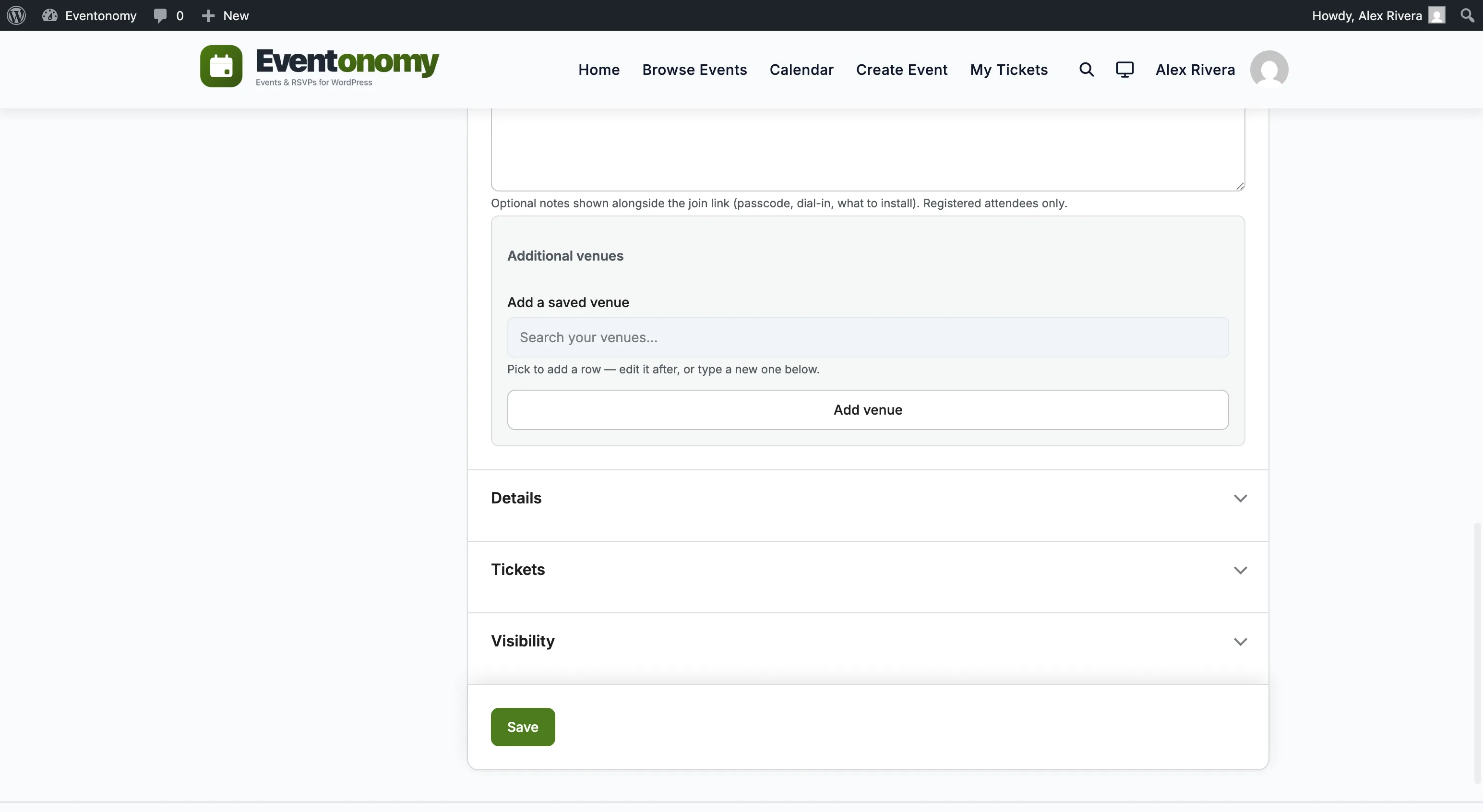
- Open the Tickets panel.
- Click Add ticket type.
- Enter a name, type, price (for paid/donation), capacity, min/max per order, and optional sale window.
- Click Save.
You can add multiple ticket types per event, for example "Early Bird" and "General Admission."
Ticket Fields
| Field | Description |
|---|---|
| Name | Label shown to attendees, e.g. "General Admission." |
| Type | Free, Donation, or Paid. |
| Price | For Paid: the charge amount. For Donation: the suggested/minimum amount. Always in your store currency (Settings → Money) - there is no per-ticket currency; the price field names the currency it is in. |
| Capacity | Max tickets of this type. Leave blank for unlimited. |
| Min per order | Minimum quantity an attendee must purchase. Default: 1. |
| Max per order | Maximum quantity per order. Default: 10. |
| Sale starts | Date/time when tickets become available. |
| Sale ends | Date/time when tickets stop being available. Defaults to event start. |
| Active | Toggle to enable/disable this ticket without deleting it. |
Paid Checkout (Pro)
Pro - The following requires Eventonomy Pro.
Paid checkout happens inside the event's RSVP block; there is no separate checkout block or page. (An earlier separate eventonomy-pro/checkout block was retired in favor of a single checkout surface.)
The event must also be set to People register here in its Registration section. An event whose registration lives on another site, or that takes no registration at all, refuses orders on the server as well as hiding the panel, so tickets on it can never be sold. See RSVPs.
When a visitor buys a paid ticket:
The attendee selects tickets and quantities in the RSVP block. A live itemized summary shows Subtotal, Discount, Service fee, Tax, and Total as they go.
Until they choose a quantity the event page shows only the tickets and their prices - the buyer and billing fields stay out of the way, so an event page is never a form for someone who is just looking.
What they are then asked for depends on Settings -> Money -> Billing details to collect: name and email by default, or the full invoice address if you have switched that on.
Eventonomy computes the total server-side from the ticket's stored price; the price the browser submits is display-only, so a tampered
price:0request is rejected. The order of operations is: apply the coupon discount first, then add the service fee and tax on the discounted amount.If you offer more than one payment method, the attendee picks from a "Pay with" selector; otherwise checkout goes straight to the single one. All are hosted-redirect: the buyer is sent away to pay and then returned. A method appears only when you have both configured it and switched it on, and if you use your site's own checkout (WooCommerce) it is the only method shown - see Payment Gateways.
On return, the order is settled with status
paidand an attendee ticket (with a QR code) is created for each seat - three seats means three separately scannable tickets.Where the buyer lands depends on their session. A logged-out buyer is offered "Create an account at this address" at checkout (ticked by default; they can untick it, and you can turn the offer off entirely under Settings -> Registration -> Offer an account at checkout). Whether or not an account is created they are not signed in on return, so a first-time buyer usually returns without a session:
- Signed in - the order-confirmation card on their member dashboard.
- Not signed in - their own order page at
/order/<token>/, showing the event, every ticket with its QR, and the invoice link. No account is needed; the link is the credential, it is repeated in their confirmation email, and the same order appears on their dashboard once they do sign in.
The order page reflects the order's current state: a refunded order says so and stops showing tickets, rather than displaying a code that would be refused at the door.
A confirmation email and a downloadable PDF invoice are also generated (see Attendees & Orders).
Payment Gateways
Eventonomy Pro supports three gateways, all hosted-redirect:
| Gateway | Notes |
|---|---|
| Stripe | 0% platform fee from Eventonomy; hosted redirect (Stripe Checkout). |
| PayPal | Standard PayPal hosted checkout. |
| This site's own checkout (WooCommerce) | Passes the order to WooCommerce and uses the payment methods you set up there. Buyers never see the word "WooCommerce", and when this is on it is the only method offered. |
Configure gateways at Eventonomy → Settings → Payments → Payments (Pro). See Payment Gateways for full setup.
Taxes and Booking Fees (Pro)
Taxes and booking fees are applied after any coupon discount (see the order of operations above). Configure them at Settings → Payments → Payments (Pro). Full details in Tax, Fees & Coupons.
Coupons (Pro)
Create percentage or fixed-amount coupon codes at Settings → Payments → Coupons (Pro). Attendees enter the code during checkout to receive the discount.
A coupon with a usage limit claims its use the moment the order is created, so two people cannot spend the last use of the same code at once; the second one is told the code has reached its limit. A coupon with no limit is simply counted when the order is paid. Either way, the use is released again if the order is refunded or cancelled, and a use held by an order that is never paid is freed automatically after an hour. Full detail in Tax, Fees & Coupons.
What's Next?
Learn how to view and manage your attendees and orders.