Calendar Sync Pro
Pro feature. Available in Eventonomy Pro.
Eventonomy Free can import events from another plugin or a file once. Eventonomy Pro adds live calendar sync: connect a calendar and its events import automatically and stay in sync on a schedule - no re-uploading, no manual work.
Two kinds of source are supported:
- iCalendar (.ics) feeds - any calendar that publishes a public
.icsweb address, including Google Calendar and Outlook. Google Calendar works because Google publishes a public iCal address for a calendar; this is the generic iCalendar route, not a separate Google integration. - Eventbrite - a direct API connection using an Eventbrite private token.
Eventbrite is not an iCalendar feed and does not use an
.icsURL.
Meetup is not supported in this release. It is planned for a future release, and there is no iCalendar workaround for it in the meantime.
Two ways to use it
Members connect their own calendar (self-service). Any member who is allowed to create events gets a Connect & Import section in their dashboard. They paste their own calendar address or Eventbrite token and their events flow into the site - no wp-admin needed. The imported events belong to that member (and go through your approval queue if you require review). This is the on-brand, community-first way: every organizer brings their own calendar.
The site owner curates feeds (admin). The owner adds and manages site-wide feeds on the Sync Sources screen, and controls the feature from Eventonomy → Settings → Connections. Member self-service can be turned off entirely if you prefer owner-only curation.
Connecting a calendar (member)
- Open your dashboard and choose Connect & Import.
- Pick a Source:
- iCalendar URL - paste the calendar's
.icsweb address (see below). - Eventbrite (your account) - paste your Eventbrite private token (see below). Your account's live events are imported.
- iCalendar URL - paste the calendar's
- Under Keep in sync, choose how often to re-sync: every hour, day, week, or month.
- Click Preview to see how many events will import, then Import & sync.
- The events import immediately and re-sync on your chosen schedule. Re-syncing never creates duplicates.
- Your connected calendars are listed below the form with their schedule and a Last synced time. Use Sync now to run one immediately, or Remove to disconnect it - your already-imported events stay in place.
Where to find your iCalendar URL
- Google Calendar - Settings → Settings for my calendars → your calendar → Integrate calendar → Public address in iCal format (the calendar must be public).
- Outlook / Office 365 - calendar sharing → Publish a calendar → the ICS link.
- Any other calendar - anything ending in
.icsthat is publicly reachable.
Connecting Eventbrite
Eventbrite doesn't use an .ics URL and has no login or account-linking step.
You connect it by pasting a private token:
- Get the token at eventbrite.com/platform/api-keys (Eventbrite → Account Settings → Developer Links → API keys). Copy the private token.
- As a member - in Connect & Import, choose Eventbrite (your account) as the source and paste your token. The imported events are yours.
- As the site owner - paste a site-wide token in Settings → Connections → Eventbrite, then add an Eventbrite (connected account) feed on the Sync Sources screen. Those events are authored by the default sync author you configure.
These two routes are independent: a member's token only ever imports into that member's own account, and the site-wide token is never used for a member feed.
Either way, the token is encrypted at rest, never shown again, and never returned in any API response. Your account's live (published) events import and stay in sync.
Owner settings and the Sync Sources screen
Settings → Connections → Calendar Sync holds the two owner-level knobs:
| Setting | Default | What it does |
|---|---|---|
| Let members connect their own calendars (Connect & Import in the member dashboard) | On | The master switch for member self-service. Turn it off to hide the dashboard section and curate every feed yourself. |
| Author for site-wide (admin) feeds | Site administrator | Who is credited as the author of events imported by the feeds you add yourself. Member feeds are unaffected. |
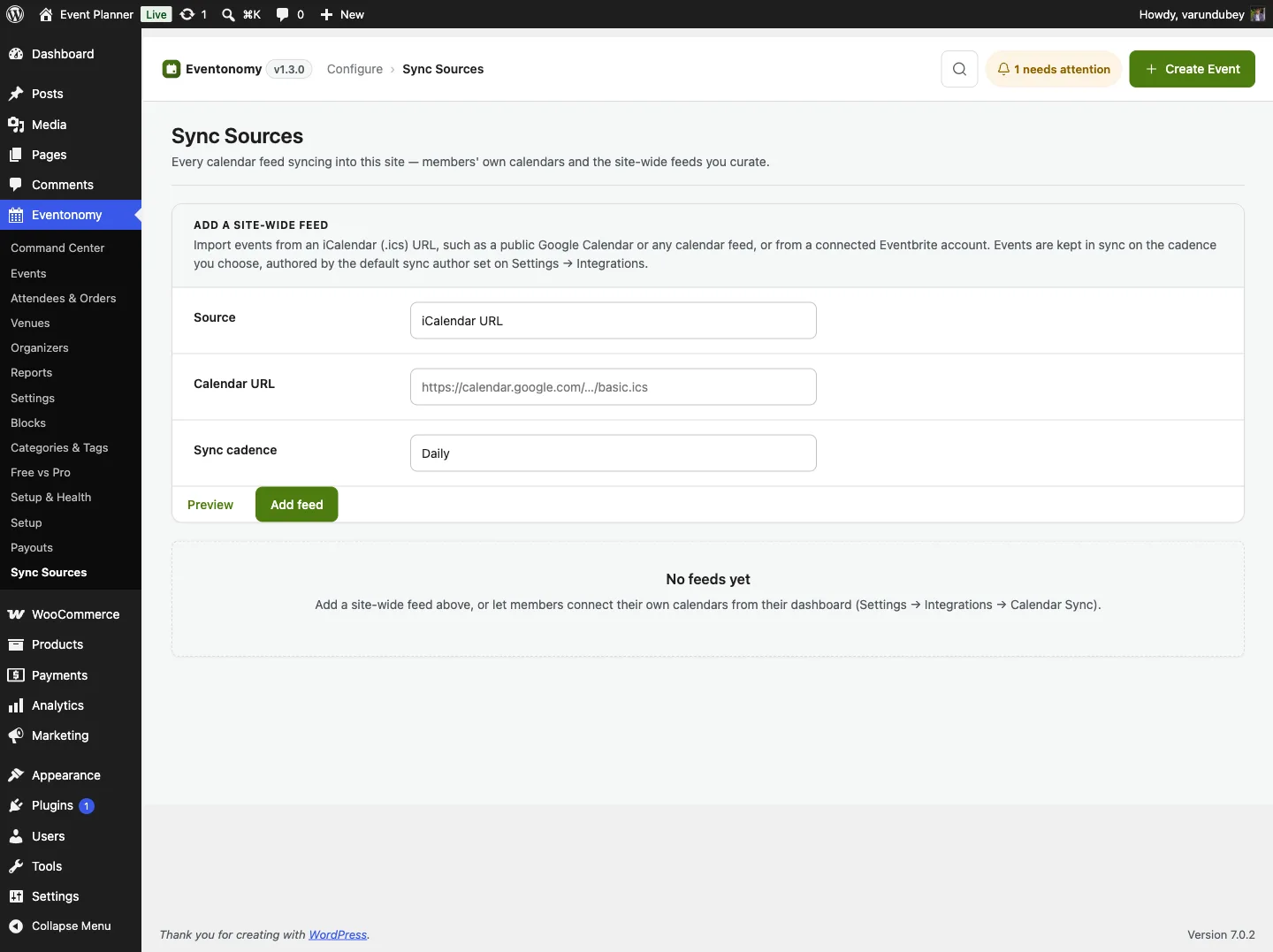
Feeds themselves are managed at Eventonomy → Sync Sources (also reachable in the Eventonomy console's left rail, in the Configure group next to Settings). That screen lists every feed on the site in one table - yours and every member's - showing the source type, the owner (or Site-wide), the cadence, how long ago it last ran, and its status. Each row has Sync now and Remove.
To add a site-wide feed, use the Add a site-wide feed form: choose iCalendar URL or Eventbrite (connected account), enter the calendar address for an iCalendar feed, pick a Sync cadence (Hourly, Daily, Weekly, or Monthly), then Preview and Add feed.
For the full settings reference, see Connections Settings.
Good to know
- No duplicates. Each calendar is tracked separately, so re-syncing updates the set without creating copies, and disconnecting one calendar never touches events from another.
- Your events stay yours. Removing a calendar removes only the connection; the events it imported remain, authored by whoever connected it. Site-wide feeds use the default sync author instead.
- Approval-aware. If your site reviews member submissions, calendar-imported events wait in the same approval queue.
- Big calendars import in stages. A feed with a lot of events is brought in a batch at a time and picks up where it left off, so a large calendar never has to finish inside a single request. While that is happening the feed shows Syncing rather than a completed time, so you can tell a run in progress from a finished one.
- A broken feed says so. If a calendar cannot be read - the address is wrong or unreachable, a token was revoked, the file is too large - the feed is marked with the reason instead of showing a healthy "Last synced" time. Silence used to look like success; it no longer does.
- Secure by design. iCalendar sync reads public feeds; Eventbrite connects with a private token that is encrypted at rest and never exposed in the admin, the dashboard, or the API.
Related
- What Pro Adds - the full Free vs Pro comparison.
- Connections Settings - the owner-side settings for Calendar Sync and Eventbrite.
- My Events Dashboard - the member-side Connect & Import section in context.
- How to Migrate from Another Plugin
- the one-time (Free) importers.