Tax, Fees & Coupons
Pro - Tax, booking fees, and coupon codes require Eventonomy Pro.
Eventonomy Pro lets you add a tax rate, a booking fee, and discount coupon codes to every paid order. All three are applied at checkout and shown in the order summary before the attendee pays.
What You Will Learn
- How to configure a tax rate (inclusive or exclusive)
- How to configure a booking fee (flat or percentage)
- How to create and manage coupon codes
- In what order these are applied at checkout
Tax Settings
Go to Eventonomy → Settings → Payments → Tax & Fees (Pro).
| Setting | Default | Description |
|---|---|---|
| Apply tax to orders | Off | Turn on to apply tax to all paid orders. |
| Tax rate (%) | 0 |
Percentage rate, e.g. 20 for 20%. |
| Tax label | "Tax" | Label shown to attendees in the order summary. Change it to "GST", "VAT", etc. |
| Ticket prices already include tax (inclusive) | Off | When on, ticket prices are treated as already including tax (tax is extracted from the price). When off, tax is added on top. |
Note: Tax applies to every paid order on the site. There is no per-ticket-type or per-event tax override.
Booking Fee Settings
A booking fee is a service charge added to every paid order. It can be a flat amount or a percentage of the order subtotal.
| Setting | Default | Description |
|---|---|---|
| Add a booking / service fee | Off | Turn on to add a fee to all paid orders. |
| Fee label | "Service fee" | Label shown to attendees. |
| Fee type | Percentage of subtotal | Percentage of subtotal = a percentage of the ticket subtotal. Fixed amount = a flat amount per order. |
| Fee amount | 0 |
The percentage or flat amount, per the type above. |
| Who pays the fee? | Buyer pays | Buyer pays (added to the total) adds the fee to what the attendee is charged. Organizer absorbs (recorded only) records the fee on the order but does not add it to the charge, and tax is then calculated on the ticket subtotal alone. |
Coupon Codes
Coupon codes give attendees a percentage or flat-amount discount at checkout.
Creating a Coupon
- Go to Eventonomy → Settings → Payments → Coupons (Pro).
- Click Add coupon.
- Fill in the coupon fields (see table below).
- Click Save changes.
Coupon Fields
| Field | Description |
|---|---|
| Code | The code attendees enter at checkout. Saved in UPPERCASE (e.g. SUMMER20). |
| Type | Percent: a percentage off the subtotal (max 100%). Fixed: a flat amount off the subtotal. |
| Amount | The discount value. |
| Usage limit | How many times this code can be used in total. Enter 0 for unlimited. |
| Expires | An optional expiry date (Y-m-d). Leave blank for no expiry. |
| Minimum subtotal | The attendee's ticket subtotal must be at or above this amount for the code to apply. Enter 0 for no minimum. |
| Active | Toggle to enable or disable the coupon without deleting it. |
How the "used" Counter Works
You can see the used count next to each coupon in the list. It is not editable: resaving settings does not reset it. When it changes depends on whether the coupon has a usage limit, and that difference is deliberate.
- A coupon with a usage limit claims its use the moment the order is created, before the buyer is sent to the gateway. Two people trying to spend the last use of the same code at the same time cannot both succeed: one gets the discount, the other is told the code has reached its limit. If the buyer abandons checkout and never pays, the held use is given back automatically once the order has sat unpaid for an hour, so an abandoned cart does not burn a code permanently.
- A coupon with no limit (
0) has nothing to protect, so it is simply counted when the order becomes paid.
Either way, the use is released again if the order is later refunded or cancelled, so a freed-up use returns to the pool.
Using a Coupon at Checkout
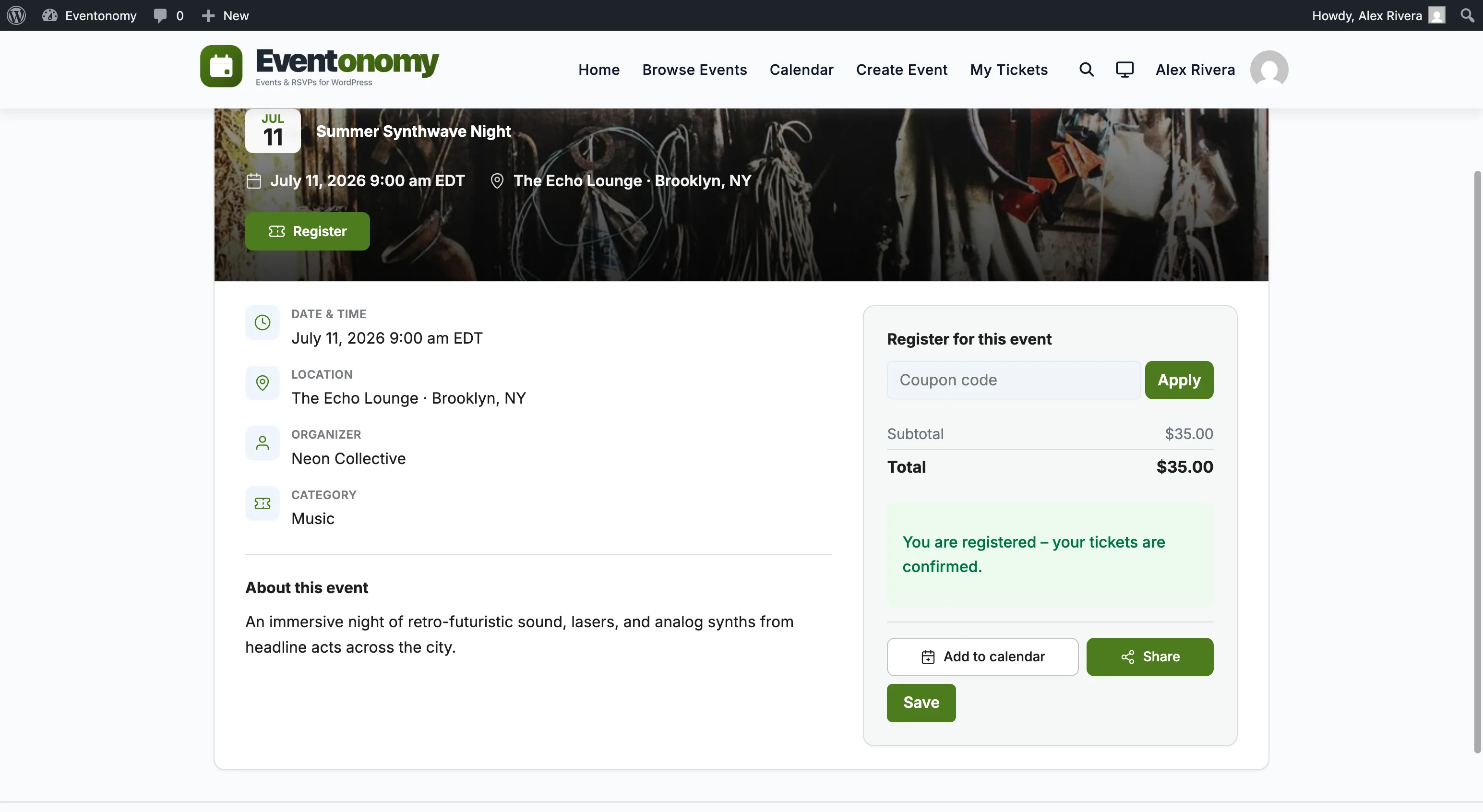
Attendees enter the code in the coupon field in the RSVP block at checkout. The discount is applied immediately and the order summary updates with the discounted total before payment.
How the Order Total is Calculated
The order total follows this sequence at checkout:
- Subtotal - the sum of (ticket price × quantity) for all line items, priced from the ticket record on the server and with any active early-bird tier already applied.
- Coupon discount - deducted from the subtotal (capped at the subtotal; the total cannot go below zero).
- Booking fee - a percentage of the discounted subtotal, or the flat amount.
- Tax - applied to the discounted subtotal plus the fee when the buyer pays the fee, or to the discounted subtotal alone when the organizer absorbs it. Tax is added on top when tax-exclusive, or extracted from that amount when tax-inclusive.
- Total - the final amount charged.
Every amount is recalculated on the server when the order is charged, so a tampered price or discount in the browser cannot change what is actually taken. The order summary at checkout shows each line so attendees can verify the calculation.
What's Next?
Understand what happens when an order needs to be cancelled or refunded.