Setup & Health
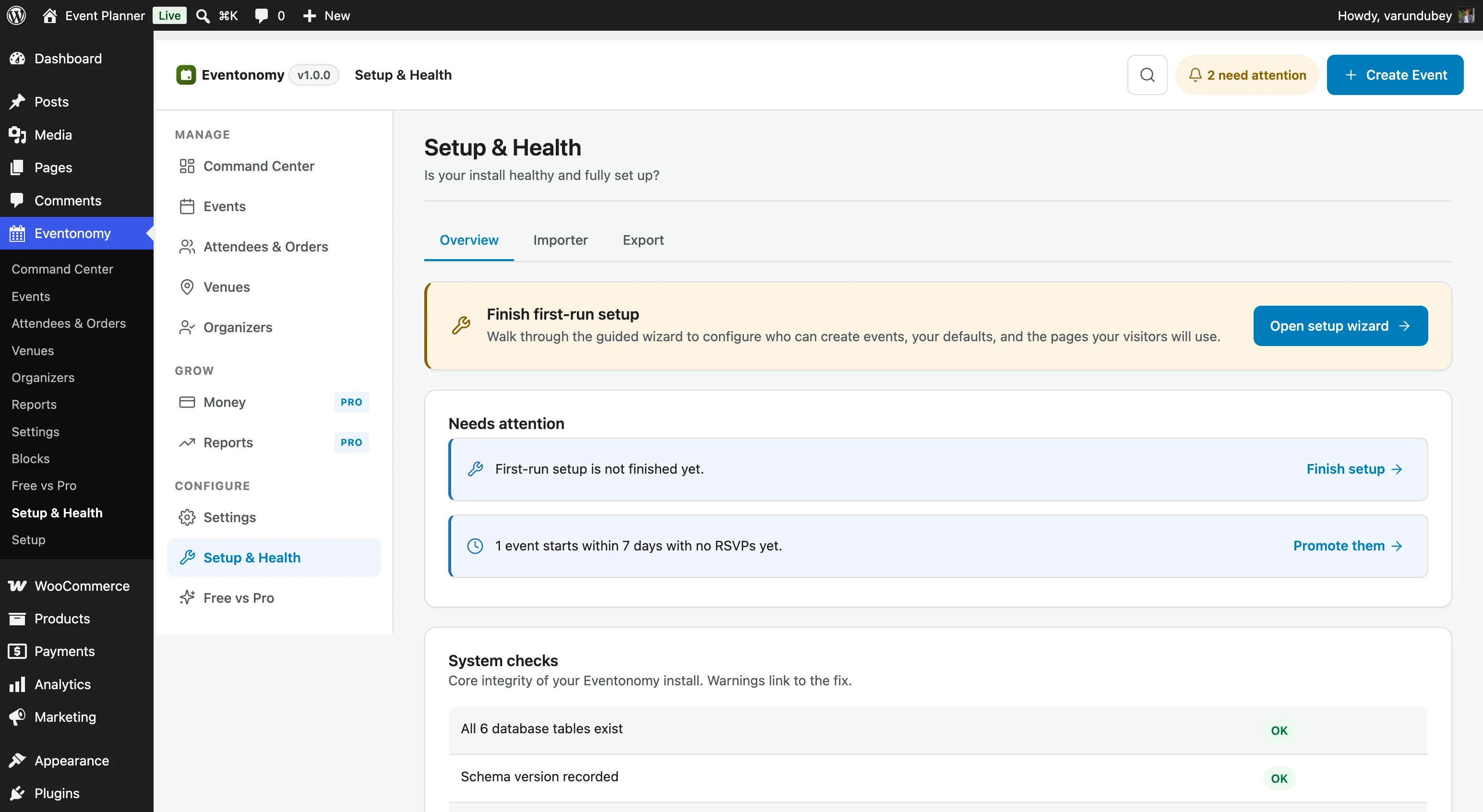
The Setup & Health screen is your one-stop check that Eventonomy is configured correctly. It lives at Eventonomy → Setup & Health in the admin menu and is the first place to go after activation.
What You Will Learn
- How the setup wizard, the Getting started checklist and Setup & Health fit together
- When Eventonomy considers your site "set up"
- How to run the health check and what each indicator means
- How to fix the most common setup issues
- How to load demo data to explore the plugin
Three Surfaces, One Story
New installs meet three different things that all talk about setup. They are not duplicates - each answers a different question:
| Surface | Question it answers | Where |
|---|---|---|
| Setup wizard | "What do I have to decide before this is usable?" | Eventonomy → Setup, its own screen; the menu item is there until you finish the wizard |
| Getting started checklist | "What should I do next?" | Command Center, dismissible |
| Setup & Health | "Is anything actually wrong?" | Eventonomy → Setup & Health, permanent |
The wizard is a one-off. The checklist is a nudge. Setup & Health is the one you come back to when something misbehaves months later.
How the Wizard Behaves
The wizard is a normal Eventonomy screen, not a takeover. Clicking Eventonomy always lands you on the Command Center; the wizard is a separate Setup item in the Eventonomy menu that you open when you want it. Nothing redirects you into it and nothing blocks the rest of the admin while it is unfinished.
It runs as seven steps, shown one at a time with a progress tracker across the top:
- Permissions - who can create events, and whether new events from members publish immediately or wait for your approval
- Locale - currency and your site time zone (pick the city your events happen in)
- Get paid - how buyers pay for tickets and donations
- Emails - the sender name and address, with a test email
- Sample data - optionally load demo events
- Pages - the pages that hold the Eventonomy blocks
- Finish - a button to finish setup and create your first event
The "Get paid" Step
With Eventonomy Pro active, this step shows the payment gateway panels you also find under Settings → Payments: Stripe, PayPal or WooCommerce. Paste your keys, click Save payment settings, then run Test connection. Click Continue when you are done.
Without Pro, or if you only run free events, the step says so and offers Free events only (which records that choice) or Skip for now. You can set up payments later from Settings → Payments.
The "Emails" Step
Set the From name and From address that confirmations, tickets and reminders come from, and click Save. Then click Send test email: it sends from the saved sender to the address of the admin signed in, so you can see it arrive. Both fields are required here. For deliverability advice, see Email Deliverability.
Two things about the run are worth knowing:
- Your progress is remembered per user, so leaving the wizard and coming back, or saving a step (which reloads the page), keeps you in the walkthrough instead of dropping you back at the start. Only Finish ends a run - loading sample data on step 5 no longer ends it early.
- Finish offers to clean up after you. If sample events are still loaded when you reach Finish, the step warns that "Visitors see them alongside your real events" and gives you a Remove sample data button right there, so you are not sent off to create your first real event with demo events still on the public calendar. With no sample data loaded, that panel simply does not appear.
Once you have finished, opening Setup again shows "Setup is already complete" with a Re-run setup wizard button. Re-running walks the seven steps again and changes nothing you have not deliberately changed - the screen says so: "You can re-run the setup wizard any time to revisit the steps - it will not undo anything." The Setup item disappears from the Eventonomy menu at that point, but the screen stays reachable from here and by URL.
When Is Setup "Complete"?
Eventonomy stops treating your site as unfinished once either:
- you finish the wizard explicitly, or
- you have chosen who can create events and at least one event exists.
That second path matters: if you skip the wizard and simply get on with it, the plugin notices and stops the reminders rather than nagging forever. Payments are deliberately not required - a site running only free events would otherwise be nagged for the life of the site.
The same two conditions govern everything that talks about setup: the Needs attention row, the Getting started checklist, Setup & Health, and whether the Setup item appears in the menu. Configure your site the long way round - choose who can create events, publish one - and all four agree that you are done, whether or not you ever opened the wizard. The wizard stays reachable by URL if you want to walk the steps later.
"Needs attention" on the Command Center
Separate from setup, the Command Center shows a Needs attention panel. This is ongoing operational advice, not first-run setup, and it stays useful for the life of the site. Typical entries:
- No payment gateway is connected, so paid tickets cannot be sold.
- First-run setup is not finished yet.
- An event starts within 7 days and has no registrations.
Each row links straight to the screen that resolves it. An empty panel means there is nothing to do - it is not a broken widget.
The Admin Navigation Rail
Every Eventonomy admin screen has a navigation rail down the left side, grouped into Manage, Grow and Configure. It can collapse to icons only, which gives tables and forms more room.
- Click Collapse menu at the top of the rail to switch to icons only. The button then reads Expand menu. Each icon keeps its name as a tooltip and for screen readers.
- Your choice is saved per user, so each person on your team keeps their own setting.
- Until you choose, the rail starts collapsed on every screen except Settings, where it carries the settings tabs that the WordPress menu does not show.
- The toggle appears on desktop widths only. On tablets and phones the rail is already icons only or slides in as a menu.
Running the Health Check
Go to Eventonomy → Setup & Health. The screen automatically checks:
| Check | What it verifies |
|---|---|
| Database tables | All evnm_* tables exist and have the expected schema version |
| Events page | The WordPress page holding the events block is published |
| Manage Events page | The member dashboard page (/manage-events/) is published |
| Single-event permalinks | Pretty event URLs are registered (/event/{slug}/) |
| WordPress permalink structure | A non-plain permalink setting is active (required for pretty URLs) |
| REST API | The eventonomy/v1 namespace responds to a self-test request |
| Cron jobs | Scheduled background jobs are registered |
| License (Pro) | Pro license key is active and the site is authorized for updates |
A green checkmark means the item is healthy. A yellow warning or red error means action is needed.
Fixing Common Issues
Events page not found
The Events page was deleted or is in draft. Go to Pages → Add New and create a page containing the eventonomy/events-list block. Then go to Eventonomy → Settings → Appearance and enter the page's ID or slug in the Events page field.
Alternatively, go to Eventonomy → Setup & Health and click Recreate pages; this recreates both the Events and Manage Events pages with the correct blocks.
Permalink structure is plain
Eventonomy requires a non-plain permalink structure for pretty event URLs. Go to Settings → Setup and choose any option other than Plain. Click Save Changes; this also flushes rewrite rules.
REST API failing
If the self-test returns an error, a security plugin or server firewall may be blocking REST API requests. Check:
- iThemes Security / Wordfence - ensure the REST API is not globally disabled.
- Server-level rules - ensure your hosting does not block
wp-jsonpaths. - Plugin conflict - deactivate other plugins one by one to find the conflict.
Database tables missing
This usually happens if the activation hook was skipped (e.g. the plugin was installed by copying files rather than through wp-admin or WP-CLI). Go to Eventonomy → Setup & Health and click Run database upgrade to create any missing tables.
Loading Demo Data
To explore Eventonomy before you create real events, load the demo dataset.
- Go to Eventonomy → Setup & Health.
- In the Quick start & demo data card, click Set up with sample data.
This applies the recommended default settings and creates around 20 events chosen to show every shape of event rather than twenty copies of one: published, draft and pending events, a recurring weekly series, an online event with a join link, an announcement that takes no registration, an event whose registration lives on another site, an event with two ticket types, one event sold out at capacity, and one event that asks custom registration questions - plus realistic venues, organizers, categories, RSVPs and cover images.
Loading sample data also switches Custom questions on and seeds a small question bank, because those questions cannot render otherwise. Both changes are recorded, so removing the sample data puts them back as it found them - and a question bank you had already created is left alone.
Questions you add after loading sample data are also kept. Removing the sample data takes out only the questions the demo added, and leaves Custom questions switched on for as long as you still have questions of your own, so the section stays available in the event editor. (Before Eventonomy 1.5.0 this step emptied the whole bank and switched the setting off, which looked like the setting refusing to stay on.)
To remove it when you are ready to go live, click Remove all demo data on the same card (the button appears once sample data is present). Only rows created by the seeder are removed; any events you created yourself are untouched. The venues and organizers the demo created are removed too, unless one of your own events has since been attached to them. You can also remove it from the wizard's Finish step, which offers a Remove sample data button whenever a seed is still loaded.
Note: Venues and organizers left behind by demo loads from before Eventonomy 1.5.0 cannot be identified as the demo's, so they are not removed automatically. Clear them with
wp eventonomy orphans --delete --catalog --catalog-untaggedafter checking the report - see WP-CLI.
Note: Demo data is available on development and staging environments. It uses the same
wp eventonomy seed/wp eventonomy unseedWP-CLI commands behind the scenes.
What's Next?
Create your first event.